
Android Developer Verification changes how certified smartphones validate every APK file before installation by binding each package identifier to a Google-verified developer identity and SHA-256 signing key. On November 19, 2026, Google confirmed that global enforcement begins in January 2027, making it essential for power users to configure the option to allow apps from unverified developers before routine sideloaded updates break.
Following the initial September 30, 2026 launch across Brazil, Indonesia, Singapore, and Thailand, Google’s November 2026 Android Developers Blog announcement establishes a phased worldwide rollout covering seven major app stores first and expanding to every installation source over the following months. Once active on your device, tapping an unregistered APK fails with the hard block dialog App from unverified developer not installed. This engineering guide walks through checking your verifier service status, completing the one-time 24-hour Advanced Flow, bypassing the cooldown immediately with Android Debug Bridge (ADB), and keeping F-Droid, Droid-ify, and Obtainium updating cleanly in 2027.
com.google.android.verifier v1.0.991779013Key Takeaways
- One-Time 24-Hour Advanced Flow: Unlocking unverified sideloading on certified Android 8+ devices requires screen-lock authentication, an anti-scam confirmation, a mandatory reboot, and an unskippable 24-hour delay before granting indefinite access.
- Zero-Wait ADB Exemption: Installing or updating single APKs and split bundles through
adb install -rover USB or local Wireless Debugging officially bypasses both developer verification checks and the 24-hour wait. - Cryptographic Resilience for FOSS: Because F-Droid re-signs roughly 85% of its catalog with repository keys that can clash with upstream Play keys, pairing indefinite Advanced Flow with F-Droid Reproducible Builds and Obtainium prevents 2027 update failures.
How Android Developer Verification Changes Sideloading in 2027
Starting in January 2027, Android Developer Verification expands globally across certified Android 8 and newer devices, requiring apps from seven major stores and direct APK downloads to carry registered developer identities. Existing installed apps keep running, but installing or updating unregistered packages fails unless you enable Advanced Flow or use ADB.
Google designed this checkpoint to raise the cost of disposable malware campaigns without formally banning independent app distribution. Starting in January 2027, enforcement begins worldwide in partnership with seven distributors: Google Play, Samsung Galaxy Store, HONOR App Market, OPPO App Market, Xiaomi GetApps, Transsion Palm Store, and vivo V-Appstore. Over the subsequent months (with Google’s distributor guidance targeting March 1, 2027 for broader third-party store readiness), enforcement expands across every remaining country and installation source on certified devices, including browser-downloaded APKs and community repositories.
According to Google’s November 2026 metrics, developers have registered millions of packages since verification opened in March 2026, covering over 99% of global Android installs. For students and hobbyists sharing personal builds without paying the $25 Android Developer Console fee or submitting government photo ID, Google also expanded its free Limited Distribution account tier from 20 to 50 authorized devices. However, that remaining sub-1% slice includes thousands of independent open-source utilities, custom emulators, self-compiled builds, and pseudonymous privacy tools.
Architecturally, Developer Verification stacks directly on top of Android’s existing sideloading permission layer. Before you can tap an APK from your browser, file manager, or third-party updater, you still must grant “Install unknown apps” permission for that specific source package and turn off OEM guardrails such as Samsung Auto Blocker (or debloat OEM background package monitors by reviewing our guide to debloat Samsung One UI 9 safely). The table below compares all four installation paths available on Android hardware in 2027.
| Installation Path | Requires Developer ID? | Triggers 24-Hour Wait? | Updates Work Automatically? | Best Use Case |
|---|---|---|---|---|
| Verified Store / Registered APK | Yes (Play or Android Dev Console) | No | Yes (standard store or updater flow) | Mainstream commercial apps and registered open-source releases |
| Advanced Flow (Unverified Sideload) | No (user accepts risk) | Yes (one-time 24h setup) | Yes (requires tapping Install anyway) | Daily sideloading of F-Droid, GitHub APKs, and self-built packages |
ADB / USB & Wireless Debugging (adb install) | No (officially exempt) | No (immediate install) | Manual push via terminal or script | Emergency installs during cooldown, developer testing, CI pipelines |
| Non-Certified / De-Googled ROM (GrapheneOS) | No (outside Google certification) | No | Yes (native package installer) | Privacy-hardened devices without privileged Google Play Services |
Step 1: Check Android Developer Verifier Status Before January 2027
Google enforces developer verification through a dedicated system service named Android Developer Verifier (com.google.android.verifier) pushed silently via Google Play Services to certified Android 8+ devices. Checking this package status now lets you complete the one-time 24-hour Advanced Flow setup before an urgent sideloaded app update fails unexpectedly.
Because Google delivers verification logic through Google Play Services rather than firmware OTAs, older phones running Android 8 (API level 26) through Android 17 receive enforcement equally, provided the hardware is Google Play certified (excluding comprehensively sanctioned jurisdictions). The com.google.android.verifier package weighs roughly 4 MB to 8 MB, holds privileged permissions including android.permission.DEVELOPER_VERIFICATION_AGENT and android.permission.USE_BIOMETRIC, and runs silently during package installation sessions.
To verify whether your smartphone already has the active verification service installed, open Settings > Apps > See all apps, tap the three-dot menu (or filter icon on Samsung One UI), enable Show system apps, and search for Android Developer Verifier. On a workstation connected via ADB, you can inspect the exact installed version and permission bindings in one command:
adb shell dumpsys package com.google.android.verifier | grep -E "versionName|enabled=|DEVELOPER_VERIFICATION_AGENT"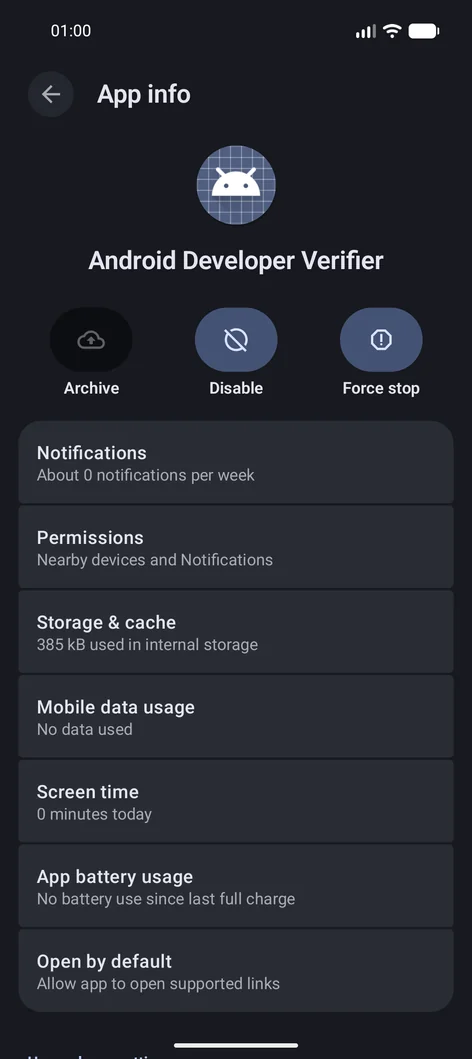
If your device displays versionName=1.0.991779013 (or newer), your phone already includes the Advanced Flow settings interface rolled out starting in August 2026. Completing Step 2 right now is a strategic move: waiting until January or March 2027 means discovering a broken update during travel or a critical security patch and being forced to wait a full day before on-device installation works again.
Why You Should Not Uninstall com.google.android.verifier via ADB
Removing com.google.android.verifier using ADB debloat commands is an unreliable workaround on certified Android hardware. Google Play Services can automatically restore missing verification components during idle Wi-Fi maintenance updates, and stripping a required security agent risks breaking Play Protect package handshakes or triggering fail-closed installation blocks when regional enforcement activates.
Several community threads suggest executing adb shell pm uninstall --user 0 com.google.android.verifier or disabling the package via Canta to dodge verification checks. While removing the package does not cause a bootloop today, treating it as a permanent bypass is brittle systems administration. Google explicitly designed the verifier framework to defend against social-engineering scripts attempting to strip system protections. Completing the supported Advanced Flow once gives you a clean, update-resistant configuration that survives future Play Services updates.
If you run a Samsung Galaxy flagship on One UI 8 or One UI 9, perform one additional prerequisite check before continuing: navigate to Settings > Security and privacy > Auto Blocker and confirm Auto Blocker is toggled OFF. Samsung’s Auto Blocker operates independently of Google’s developer verification and silently greys out both third-party APK installs and USB ADB debugging while active.
Step 2: Enable Advanced Flow to Allow Apps from Unverified Developers
To allow apps from unverified developers permanently on a certified phone, enable Developer Options, open Apps from unverified developers, authenticate with your lock screen, acknowledge the anti-scam warning, and restart the device. After a mandatory 24-hour cooldown expires, return to the same menu and select Indefinitely instead of 7 days.
Google documented this opt-out sequence in its official Android Help guide for unverified developer installs. Every friction point in the workflow targets high-pressure phone scams where attackers coach victims on a live voice call or screen-sharing session into sideloading banking trojans. Follow these exact steps to complete the one-time setup:
- Unlock Developer Options: Open Settings > About phone (on Samsung Galaxy devices, go to Settings > About phone > Software information). Tap Build number seven times consecutively and enter your device PIN or pattern when prompted until Android confirms Developer Options are active.
- Locate the Verification Menu: Navigate to Settings > System > Developer options (on Samsung One UI, scroll directly to the bottom of the main Settings screen and tap Developer options). Scroll down and open Apps from unverified developers.
- Toggle Unverified Installs On: Flip the Allow apps from unverified developers switch to ON. Android immediately triggers a hardware-backed lock screen prompt requiring your fingerprint, face unlock, or PIN so automated malware cannot manipulate the toggle silently.
- Clear the Coercion Warning: Android displays an anti-scam screen asking whether someone else is instructing you to change this setting, explicitly reminding users that banks, police, and government agencies never request disabling install protections. Confirm that you are making an independent choice to proceed.
- Perform the Mandatory Device Restart: Tap the restart prompt to reboot your smartphone. This reboot is mandatory because restarting drops active phone calls and terminates remote screen-sharing utilities before the security timer begins.
- Wait Through the 24-Hour Countdown: Once your phone boots back up, the Apps from unverified developers page displays a live 24-hour countdown timer. Do not attempt to spoof the system date, time, or timezone under System Settings; Android tracks the protective delay independently of manual clock changes.
- Finalize Permission Duration: After 24 hours have elapsed, return to Developer options > Apps from unverified developers, re-authenticate with your biometric credential or device PIN, confirm that you accept the risk, and select Indefinitely rather than 7 days.
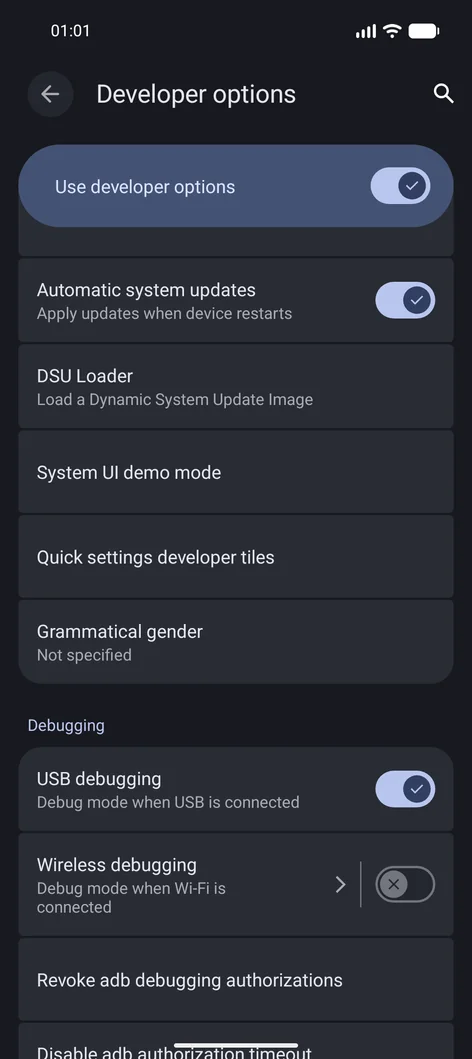
Choosing Indefinitely is critical for anyone maintaining an active FOSS library. Selecting 7 days automatically re-engages the verification block a week later, forcing all background updates for unregistered packages to fail silently until you sit through another 24-hour cooldown.
Turning Off Developer Options and the 10-Minute Grace Window
You can safely switch Developer Options off after finishing Advanced Flow because your unverified installation permission remains active, keeping strict banking and payment apps running normally. If you ever toggle off unverified installs manually, Android provides a hidden 10-minute grace window to re-enable the option without restarting the 24-hour timer.
Many European, UK, and Asian banking apps refuse to launch whenever Android’s global Developer Options switch is turned on. As confirmed in the official Android Developer Verification FAQ, leaving Developer Options active is unnecessary once Advanced Flow is finalized. Switching Developer Options off hides the menu while preserving your indefinite unverified install flag, and Google does not expose an API allowing third-party apps to query whether Advanced Flow is enabled on your phone.
Be cautious if you ever turn off the Allow apps from unverified developers toggle itself. You have strictly 10 minutes to flip it back on without penalty; once minute 11 passes, re-enabling unverified installs triggers a fresh device restart and another 24-hour wait. Also note that even with indefinite access active, Android still presents a warning prompt when installing or updating an unregistered package, now displaying an Install anyway confirmation button.
Step 3: Bypass the 24-Hour Wait Immediately Using ADB
Android Debug Bridge installations remain officially exempt from developer identity checks and the 24-hour Advanced Flow waiting period on all certified Android devices. Using Android SDK Platform-Tools over USB or local Wireless Debugging, you can immediately install or update any unregistered single APK or split APK bundle with zero cooldown.
Whether you are currently stuck inside the 24-hour waiting period or prefer keeping on-device unverified sideloading disabled for maximum scam resistance while retaining engineering control over specific apps, ADB is Google’s explicitly guaranteed escape hatch. Download the lightweight, standalone Android SDK Platform-Tools (v37.0.3) archive for Linux, macOS, or Windows, extract it, and add the folder to your shell PATH (on Ubuntu/Debian, you can also run sudo apt install adb, though Google’s upstream zip delivers the newest v37.0.3 binary).
Install and Update Single or Split APKs Over USB
Connecting your phone to a Linux, macOS, or Windows computer via USB-C allows instant APK deployment through Google’s standalone Platform-Tools package. After authorizing your computer’s RSA fingerprint prompt under USB Debugging, the adb install -r command installs or upgrades unverified software while preserving all existing local application databases and preferences.
Enable USB debugging inside Settings > Developer options, plug your phone into your workstation with a data-capable USB-C cable, and tap Allow on the on-screen RSA key authorization prompt. Verify the connection and deploy your APK directly from your terminal:
# 1. Confirm your device serial shows "device" (not "unauthorized")
adb devices

# 2. Install or in-place update a standalone unverified APK while keeping user data
adb install -r ./app-arm64-v8a-release.apk

# 3. Install or update a split APK bundle (extracted from .apks or .xapk archives)
adb install-multiple -r ./base.apk ./split_config.arm64_v8a.apk ./split_config.en.apk
When the package deploys cleanly, ADB prints Performing Streamed Install followed by Success in roughly two to four seconds, completely bypassing com.google.android.verifier. The -r flag replaces an existing installation without wiping app data, provided the cryptographic signing certificate matches the previously installed build. If you ever encounter INSTALL_FAILED_UPDATE_INCOMPATIBLE, the new APK was signed with a different key (for example, switching from an F-Droid build to an upstream GitHub release), requiring you to back up app settings and uninstall the old package first.
Sideload Over Local Wi-Fi Using Wireless Debugging
Devices running Android 11 through Android 17 support Wireless Debugging over your local Wi-Fi network, removing the need for USB data cables during emergency sideloading. After completing a one-time six-digit TLS pairing handshake with adb pair, you connect to the device’s active TCP port and push unregistered APKs identically to USB.
Connect both your computer and smartphone to the same Wi-Fi subnet. On your phone, open Developer options > Wireless debugging, toggle it ON, and tap Pair device with pairing code. Note the displayed IP address, pairing port, and 6-digit code, then execute the pairing and install commands from your terminal (note that the pairing port and the active connection port shown on the main Wireless Debugging screen are two distinct port numbers):
# 1. Pair once using the ephemeral pairing IP:PORT and 6-digit code
adb pair 192.168.1.42:37129

# 2. Connect to the active IP:PORT displayed on the main Wireless Debugging screen
adb connect 192.168.1.42:41855

# 3. Push the unregistered APK over Wi-Fi with zero 24-hour wait
adb -s 192.168.1.42:41855 install -r ./app-arm64-v8a-release.apk
If you want to harness Android’s Wireless Debugging daemon (shell UID 2000) locally on your handset without keeping a laptop nearby, you can configure Shizuku wireless debugging without a PC. Pairing Shizuku with supported open-source package managers automates background package confirmations. However, because third-party Shizuku clients invoke Android’s PackageInstaller session APIs rather than host-side CLI adb, completing the one-time Advanced Flow in Step 2 alongside Shizuku guarantees uninterrupted updates regardless of future Play Services policy tightening.
Step 4: Keep F-Droid, Droid-ify, and Obtainium Working in 2027
Android Developer Verification validates each package name against the SHA-256 certificate fingerprint registered by its verified author. Because F-Droid compiles and re-signs roughly 85% of its catalog using repository keys, combining indefinite Advanced Flow access with F-Droid Reproducible Builds and Obtainium’s direct GitHub tracking prevents unexpected 2027 update failures.
Understanding the underlying cryptography clarifies why open-source distribution faces unique friction under the 2027 rules. Google’s verification registry does not inspect source code; it verifies a tuple mapping package_name -> SHA-256 signing certificate(s) -> verified developer identity. Although the Android Developer Console allows a verified developer to attach multiple signing certificates to a single package ID (or lets an open-source registry automate registration via the Android Developer Console API), coordinating keys across hundreds of volunteer-maintained packages is slow and incompatible with anonymous maintainers.
Fixing F-Droid Signing Key Mismatches with Reproducible Builds
When an upstream developer registers a package ID using only their Google Play signing key, F-Droid’s re-signed APK triggers a certificate mismatch on enforcing devices unless Advanced Flow is enabled. F-Droid Reproducible Builds avoid this friction by verifying source builds bit-for-bit and shipping the upstream developer’s original signed binary intact.
F-Droid’s standard build server fetches public source code, strips proprietary trackers, compiles the binary, and signs it with F-Droid’s private keystore. That architecture guarantees source-to-binary trust, yet it produces a SHA-256 certificate fingerprint completely different from the developer’s own Play Store or GitHub key. Unless the developer explicitly downloads the F-Droid-signed APK and registers F-Droid’s SHA-256 fingerprint under their verified console account, certified devices treat that F-Droid build as unverified.
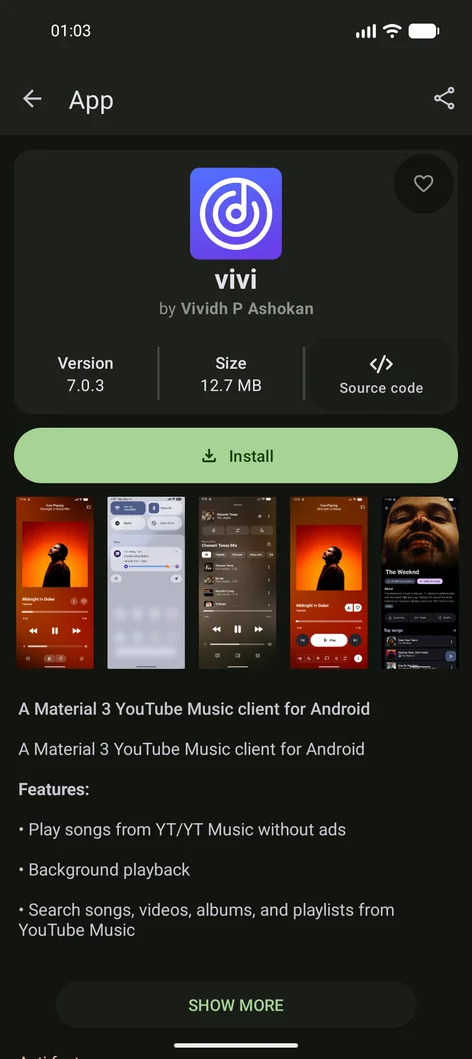
By contrast, packages enrolled in F-Droid Reproducible Builds compile deterministically on F-Droid’s verification servers, prove exact binary equivalence against the developer’s official release, and distribute the developer’s original signed APK. Whenever that upstream author has verified their signing key with Google, the F-Droid reproducible build installs with zero warnings even on stock devices without Advanced Flow. To inspect build signatures quickly, enable IzzyOnDroid mirrors (which distribute upstream developer-signed binaries), and accelerate catalog refreshes, install Droid-ify for fast F-Droid updates alongside your indefinite Advanced Flow configuration.
Track Upstream Signed APKs Directly with Obtainium
Obtainium eliminates intermediary repository signing conflicts by downloading release APKs directly from upstream GitHub, GitLab, and Codeberg pages. Whenever a maintainer verifies their signing key with Google, Obtainium updates pass verification without warnings, while unregistered privacy apps continue updating smoothly once your device completes the one-time Advanced Flow unlock.
For power users who want zero multi-day F-Droid build queues and direct cryptographic alignment with upstream authors, the cleanest 2027 strategy is to automate GitHub APK updates with Obtainium. Obtainium pins each app’s initial signing certificate locally, rejects tampered releases automatically, and pulls zero-day patches straight from the author’s release pipeline. Combining Obtainium for core tools (such as Cromite, Seal, RethinkDNS, and PocketPal) with Droid-ify for F-Droid Reproducible Builds keeps our entire curated 2026 open-source Android app stack running with minimal manual intervention.
Finally, keep in mind that Android Developer Verification applies strictly to Google-certified Android devices running privileged Google Play Services. If you migrate to a hardened, non-certified AOSP distribution such as GrapheneOS (even with Sandboxed Google Play installed, because GrapheneOS isolates Play Services as a standard unprivileged app without DEVELOPER_VERIFICATION_AGENT system access) or LineageOS paired with MicroG, your phone remains completely outside Google’s verification enforcement boundary with zero 24-hour waiting periods.
Frequently Asked Questions & Troubleshooting
Why does Android say “App from unverified developer not installed” with no Install Anyway button?
Android displays “App from unverified developer not installed” with no override button because your certified device enforces Developer Verification and Advanced Flow is currently disabled. Enabling the 24-hour Advanced Flow in Developer Options unlocks the “Install anyway” option, or you can immediately push the APK through adb install over USB or Wi-Fi.
Can you bypass the 24-hour Android sideloading wait by changing the phone’s date and time?
No. Manually advancing your phone’s date, time, or timezone does not shorten or bypass the 24-hour Advanced Flow waiting period. Android tracks the protective cooldown independently of user-adjustable system clock settings, and Google provides no ADB command to skip the timer. Only installing an APK directly via adb install bypasses the delay.
Does the 24-hour waiting period apply every time you sideload an APK or update an app?
No. The 24-hour security delay is a one-time onboarding step rather than a per-app wait. Once you complete the cooldown and select Indefinitely, you can install and update unlimited unregistered APKs immediately by tapping “Install anyway.” You only repeat the wait if you choose 7 days or disable the toggle past 10 minutes.
Will Android developer verification kill F-Droid, Obtainium, and open-source GitHub apps in 2027?
No, F-Droid, Obtainium, and open-source GitHub apps continue working in 2027, though default installations require extra preparation on certified phones. Registered developers and F-Droid Reproducible Builds install normally, while unregistered or F-Droid-signed packages remain fully installable and updatable after enabling Advanced Flow indefinitely, using ADB, or running a non-certified OS like GrapheneOS.
Leave a Reply