
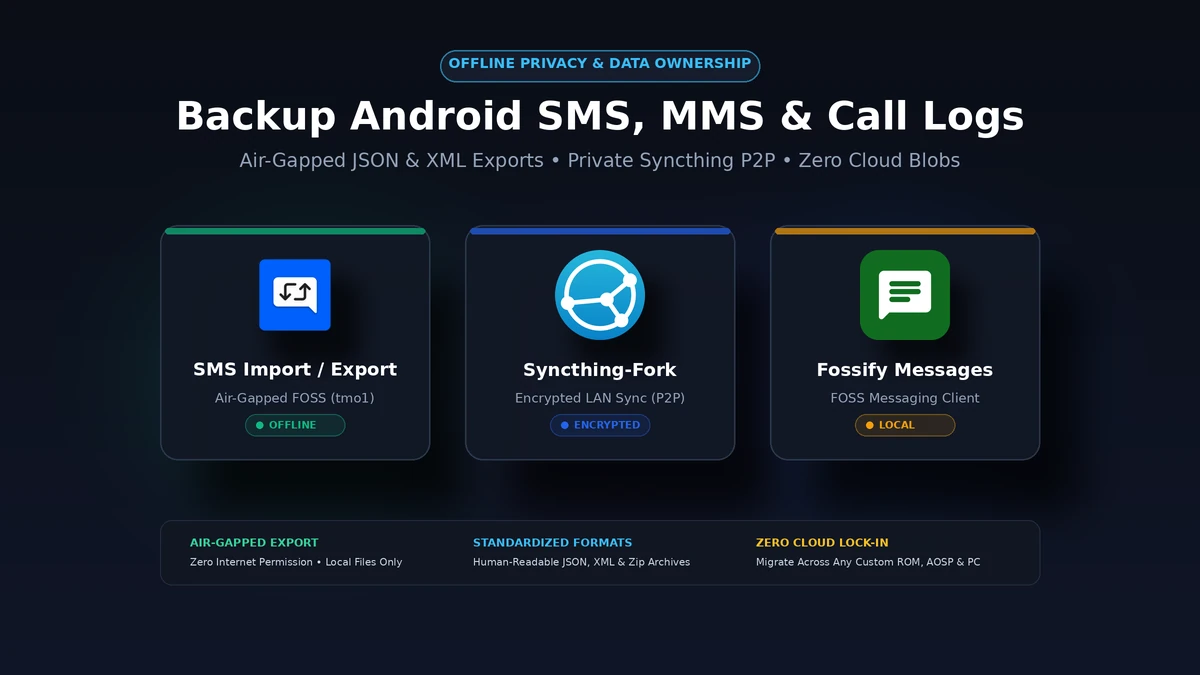
Relying solely on Google One’s automatic cloud backup to preserve your Android text messages and call history carries two major drawbacks: you cannot inspect or export individual messages from Google’s opaque cloud blob, and if you switch to a custom ROM or de-Googled device, you cannot restore that backup at all.
By exporting your SMS, MMS picture attachments, and phone call logs into standardized local files (.xml or .json) and syncing them privately using tools from our 2026 Open-Source Android App Stack, you retain permanent, human-readable ownership of your communication history across any Android brand.
tmo1/sms-ie) & Syncthing-ForkKey Takeaways
- Best 100% Open-Source Backup Tool (
SMS Import / Export): Available on F-Droid and GitHub (tmo1/sms-ie), SMS Import / Export exports SMS, MMS, Call Logs, and Contacts to clean local JSON/NDJSON files with zero internet permissions. - Automated P2P Off-Device Sync: Point Syncthing-Fork at your local
/Documents/SMS-Backups/directory to replicate nightly backups straight to your home PC or NAS over TLS 1.3. - Temporary Default SMS App Requirement: Android’s security sandbox requires you to temporarily set your backup utility as the Default SMS app during the restore phase so it has write access to the telephony SQLite database.
Android SMS & Call Log Backup Tools Comparison Matrix (2026)
Compare the file formats, network permissions, and MMS attachment support across the top local SMS and call log backup tools for Android in the reference matrix below.
| Backup Utility | License & Telemetry | Backs Up SMS, MMS & Call Logs? | Export File Format | Internet Permission Required? |
|---|---|---|---|---|
SMS Import / Export (tmo1/sms-ie) | GPL-3.0 (100% FOSS) | Yes (SMS + MMS + Calls + Contacts) | Standard .json / .zip | No (100% Air-Gapped) |
| Fossify SMS Messenger | GPL-3.0 (100% FOSS) | SMS & MMS | Local .json | No |
| SMS Backup & Restore (SyncTech) | Proprietary (Ad-Supported Free) | Yes (SMS + MMS + Call Logs) | Standard .xml | Yes (Cloud Upload Modules) |
| Google One Built-In Backup | Proprietary Google Play Services | Yes (Locked to Google Account) | Proprietary Cloud Blob | Mandatory Cloud Sync |
Step 1: Export SMS, MMS & Call Logs Locally Using Open-Source SMS Import / Export
For a 100% tracker-free backup that never requests network access, install SMS Import / Export from F-Droid or GitHub (github.com/tmo1/sms-ie) via Obtainium APK and schedule automated nightly exports to a local folder.
- Open SMS Import / Export and grant the requested SMS, Call Logs, and Contacts runtime permissions.
- If Android 15, 16, or 17 blocks the SMS permission with a “Restricted setting” popup on a sideloaded APK, unlock it in 10 seconds via Settings → Apps → SMS Import / Export → ⋮ → Allow restricted settings (as detailed in our Android Restricted Settings & Unknown Sources Guide).
- Tap Export Messages and Export Call Log, and select a local folder such as
/Documents/SMS-Backups/. - Open the app’s Settings → Scheduled Export to automatically write a fresh backup every night at 02:00 AM, and sync that directory to your PC using Syncthing-Fork. For full app-data backups beyond SMS, see our Swift Backup vs Neo Backup Android Guide.
Step 2: How to Restore Your SMS & Call Log Backup on a New Phone
When restoring SMS messages onto a new Android smartphone, Android’s telephony provider security model requires the backup tool to be temporarily assigned as the system’s Default SMS application during the import operation.
- Open Settings → Apps → Default apps → SMS app and temporarily select SMS Import / Export (or SMS Backup & Restore).
- Open the backup app, tap Import Messages and Import Call Log, and select your
.zip/.jsonor.xmlbackup archive. - Once the restore reaches 100%, switch your Default SMS app back to your regular messaging app (such as Google Messages or Fossify SMS).
Frequently Asked Questions (FAQ)
Do local SMS backup apps also back up RCS chats from Google Messages?
Yes, with one caveat: Google Messages stores Rich Communication Services (RCS) messages inside the Android telephony MMS database table, so tools like SMS Import / Export and SMS Backup & Restore capture RCS text and attachments when MMS backup is enabled, converting them into standard MMS entries upon restore.
Why aren’t my restored text messages showing up in Google Messages immediately?
If you restore thousands of messages, Google Messages may display a blank inbox while rebuilding its local search index. Force-stop Google Messages under Settings → Apps → Messages, clear its App Cache (never Clear Data), and reopen the app to see all restored threads.