Deploying the open-source AppLock Revived APK Android build (dev.riyadm.applock) brings per-app biometric and PIN locking to any handset running Android 8.0 through Android 17 without root privileges. By monitoring foreground package launches through Shizuku, Usage Statistics, or Accessibility APIs, it draws an instant opaque FLAG_SECURE lock shield over banking apps, crypto wallets, and photo pickers before private screen contents ever render.
In late November 2026, both Samsung One UI 9.5 Beta (Galaxy S26 lineup) and Google’s Android 17 QPR3 Beta 3 (Pixel devices) finally shipped native per-app biometric locks. However, Google confirmed that native App Lock relies on new core Android platform APIs and will never be backported to Android 12, 13, 14, 15, or 16 through Google Play system updates. Pairing MIT-licensed AppLock Revived with Obtainium and a rootless ADB loopback lets you configure Shizuku wireless debugging without PC access and lock sensitive applications on your existing phone today.
dev.riyadm.applock) + Shizuku v13.5.4 + Obtainium v1.7.xKey Takeaways
- Hardened FOSS Architecture: AppLock Revived (
dev.riyadm.applock) is an MIT-licensed Material 3 Expressive fork using PBKDF2-HMAC-SHA256 credential hashing,FLAG_SECUREscreenshot blocking, an instant anti-flash lock shield, and zero analytics or cloud accounts. - Low-Overhead Shizuku Monitoring: Running the Shizuku (
UID 2000) or Usage Statistics backend eliminates broad Accessibility Service privileges and automatically halts polling when the screen turns off, keeping standby battery drain below 0.3% per hour. - Clear Threat-Model Boundaries: User-space app lockers reliably stop shoulder surfing, casual phone sharing, and gallery picker snooping, whereas OS-level Android Private Space, Samsung Secure Folder, or One UI 9.5 remains necessary for Safe Mode resistance and notification redaction.
One UI 9.5 and Android 17 App Lock vs. AppLock Revived
Samsung One UI 9.5 Beta and Android 17 QPR3 Beta 3 introduce native app locking, yet Google confirmed core platform API dependencies prevent backports to older Android releases. AppLock Revived closes this gap immediately by bringing open-source biometric locking, scrambled PINs, and profiles to any Android 8 through 17 device.
Samsung rolled out its One UI 9.5 Beta on November 18, 2026 exclusively to the Galaxy S26, S26+, and S26 Ultra. Built on Android 17 QPR2 platform APIs, Samsung’s native App Lock authenticates individual apps using fingerprint, face recognition, or your primary screen lock credential while automatically removing home-screen widgets and concealing notification previews. On the Galaxy S26 Ultra, One UI 9.5 goes one step further by tying App Lock directly to Samsung’s hardware Privacy Display, automatically dimming off-axis viewing angles the moment a protected app opens. Older Galaxy handsets such as the S25 Ultra will likely wait until mid-2027 for stable One UI 9.5 firmware.
On the stock Android side, Google re-introduced native App Lock in Android 17 QPR3 Beta 3 for Pixel 6a through Pixel 11 devices ahead of a planned Q1 2027 stable release. Users long-press any launcher icon and select App lock, or manage protected apps in bulk under Settings > Security & privacy > App lock. Google’s implementation hides notification bodies, clears widgets, redacts Recents thumbnails behind a padlock screen, and deliberately leaves zero visual clue on the home screen icon. Even native App Lock carries a documented media caveat: files saved by a locked app can still be surfaced by separate gallery apps holding broad storage permissions. Google’s Mishaal Rahman confirmed in November 2026 that because native App Lock hooks into core Android framework APIs, it cannot ship to Android 14, 15, or 16 via Google Play system updates.
AppLock Revived picks up where the unmaintained legacy aload0/AppLock project stalled, rebuilding every interface in Material 3 Expressive (Compose Material3 1.5) while patching upstream bypass bugs covering biometric prompt cancellation, rapid Recents switching, and multi-window reveals. Comparing all four Android app-protection architectures clarifies which mechanism matches your threat model:
| Security Capability | AppLock Revived (Shizuku Mode) | AppLock Revived (Accessibility Mode) | Native Android 17 QPR3 / One UI 9.5 | Android Private Space |
|---|---|---|---|---|
| Works on Android 12 to 16? | Yes (Android 11+ wireless Shizuku; Android 8+ core app) | Yes (Android 8.0+ / API 26+) | No (Requires Android 17 QPR3 or One UI 9.5 OS upgrade) | Android 15+ only |
| OS-Level Kernel Isolation? | No (User-space overlay + UID 2000 monitoring) | No (User-space overlay + Accessibility events) | Framework-enforced ActivityManager lock (shared user storage) | Yes (Separate encrypted user profile & storage boundary) |
| Battery and Accessibility Risk | Minimal (Polling halts on screen off; zero Accessibility access) | Low battery (in-memory checks), higher privilege surface | Negligible (Native OS hook; zero third-party permissions) | Low (Profile pauses completely when locked) |
| Hides Notifications and Widgets? | No (Requires manual channel hiding per app) | No (Requires manual channel hiding per app) | Yes (Automatically hides previews, widgets, and Recents) | Yes (App icons, notifications, and widgets vanish when locked) |
| Custom Controls (2-Step, Profiles, Selfie) | Full (Two-step auth, scrambled PIN, profiles, intruder selfie, Trusted Wi-Fi) | Full (Two-step auth, scrambled PIN, profiles, intruder selfie, Trusted Wi-Fi) | Basic (Primary device credential only; S26 Ultra adds Privacy Display) | Separate lock credential; hides app presence completely |
| Best Threat Model | Daily privacy, shoulder surfing, and banking friction on Android 11 to 17 | Quick non-Shizuku casual locking on Android 8 to 17 | Discreet native app locking on flagship 2026/2027 firmware | Physical theft, forensic separation, and high-value finance isolation |
Step 1: Download and Track AppLock Revived via Obtainium
Because AppLock Revived is distributed exclusively outside the Google Play Store, installing the official signed APK through Obtainium directly from the upstream GitHub repository is the safest deployment method. Obtainium tracks automated CI patch releases, pins the developer’s cryptographic signing key locally, and eliminates stale third-party APK mirror risks.
Before downloading, audit the verified upstream package metadata below. Because dev.riyadm.applock uses an independent package identifier, it installs cleanly alongside the older legacy AppLock utility if you are migrating settings manually.
| Specification Field | Verified AppLock Revived Metadata (November 2026) |
|---|---|
| Application Name | AppLock Revived (Fork of aload0/AppLock, maintained by Riyad M) |
| Android Package ID | dev.riyadm.applock |
| Latest Verified Release | v3.1.2 (November 24, 2026; GitHub Actions CI builds signed AppLock-Revived-v3.1.2.apk and .sha256 assets) |
| Minimum Android OS | Android 8.0+ (API 26); compiled against Android SDK 37.2 (Android 17) |
| License & Telemetry | MIT Open-Source • Zero ads, zero trackers, zero accounts; offline-capable when update check is off |
| UI & Cryptography | Material 3 Expressive (Compose Material3 1.5), PBKDF2-HMAC-SHA256 hashing, AES-256-GCM backups |
| Official Upstream Links | GitHub Source Repository | Official Signed APK Releases |
While you can grab the signed binary straight from GitHub Releases in a mobile browser, security tools receive frequent bypass fixes and Android compatibility patches. If you have not set up a direct GitHub release manager yet, follow our walkthrough to automate GitHub APK updates with Obtainium (fetching the official installer from ImranR98’s Obtainium GitHub Releases), then deploy AppLock Revived in four steps:
- Add the Upstream Repository: Launch Obtainium, tap + Add App in the bottom bar, and paste
https://github.com/riyadmondol2006/AppLock-Revivedinto the App source URL field. - Verify Release Asset Parsing: Tap Add. Obtainium queries the public GitHub Releases API, identifies the latest signed
AppLock-Revived-v3.1.x.apkrelease artifact automatically, and displays the changelog. - Install the Signed Binary: Tap Install. If Android prompts you for installation rights, toggle Allow from this source for Obtainium. On Samsung One UI devices, confirm Settings > Security and privacy > Auto Blocker is switched off before installing local APKs.
- Make AppLock Revived 100% Offline: Once you finish onboarding, open AppLock Revived’s Settings > Updates and disable the built-in GitHub update check. Obtainium already polls upstream releases, allowing AppLock Revived to operate with zero outbound network requests.
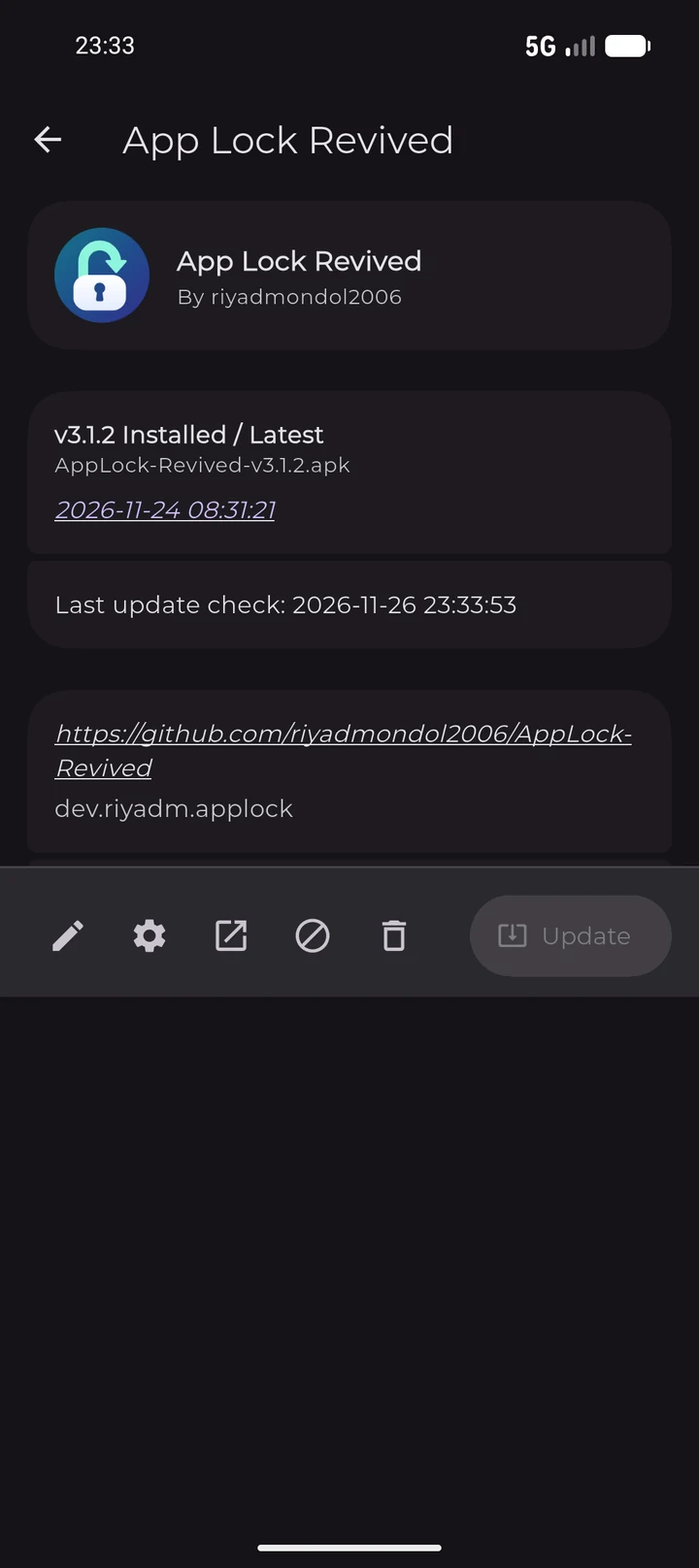
Every CI release on GitHub publishes a companion .sha256 file alongside the signed binary. Security-conscious engineers verifying builds on Linux, macOS, or Termux before pushing over ADB can validate file integrity in two commands:
# 1. Verify the downloaded APK matches the official CI SHA-256 digest
sha256sum -c AppLock-Revived-v*.apk.sha256

# 2. Optional: Install or update cleanly over USB or wireless ADB
adb install -r ./AppLock-Revived-v*.apk
Handling January 2027 Developer Verification and ADB Installs
Google’s global Android Developer Verification rollout begins in January 2027 across Play-certified Android 8+ phones, blocking unregistered GitHub APKs by default. Completing Android’s one-time 24-hour Advanced Flow in Developer Options or pushing updates directly over USB or wireless ADB keeps AppLock Revived and Obtainium installing cleanly without verification failures.
Following its regional pilot launch on September 30, 2026, Google confirmed on November 19, 2026 that the system verifier service (com.google.android.verifier) expands globally starting January 2027. Unless an independent GitHub maintainer registers their package ID and SHA-256 certificate in Google’s Android Developer Console, tapping an unregistered APK fails with the hard block dialog App from unverified developer not installed. Completing Google’s one-time 24-hour waiting period under Developer options > Apps from unverified developers and choosing Indefinitely ensures Obtainium updates never stall unexpectedly. For exact verifier diagnostics, Advanced Flow steps, and zero-cooldown ADB deployment commands, follow our engineering checklist to allow apps from unverified developers on certified devices.
Step 2: Configure Shizuku Backend vs. Accessibility Mode
Selecting Shizuku or Usage Statistics over Accessibility Service minimizes your device’s privilege attack surface while reliably detecting foreground app launches. Using Shizuku’s rootless UID 2000 ADB bridge avoids granting broad UI-reading permissions, bypasses strict banking app accessibility warnings, and halts background polling completely whenever your display turns off.
AppLock Revived supports three foreground-detection engines: Shizuku, Usage Statistics, and Accessibility Service. Many mainstream tutorials default to Accessibility Service because it requires no extra tools. From a systems security perspective, however, Android’s Accessibility framework exposes deep UI hierarchy events across applications, triggers Android 13+ Restricted Settings blocks on sideloaded APKs, and causes numerous European, UK, and US banking applications to display security warnings or refuse launch whenever third-party accessibility services are active.
Running AppLock Revived on the Shizuku backend solves these friction points cleanly. AppLock Revived leverages Shizuku’s IPC binder interface and HiddenApiBypass to monitor active task transitions under shell UID 2000 without requesting BIND_ACCESSIBILITY_SERVICE. Starting in release v3.1.1, both Shizuku and Usage Statistics monitoring stop polling completely whenever the display turns off, protection is paused, or your locked list is empty. Keep one operational nuance in mind: because Android stops the local Wireless Debugging daemon on reboot, you must reopen Shizuku over Wi-Fi and tap Start after restarting your phone. If you reboot frequently while traveling off Wi-Fi, Usage Statistics (PACKAGE_USAGE_STATS) serves as an immediate zero-Accessibility fallback that survives reboots automatically.
- Initialize Shizuku Daemon: Open Shizuku and verify the top status banner reports Shizuku is running (shell UID 2000) over local Wireless Debugging.
- Set Primary Lock Credentials: Launch AppLock Revived, complete the Material 3 Expressive welcome wizard, and create a strong 6-digit (or alphanumeric) PIN. AppLock Revived immediately hashes credentials locally using PBKDF2-HMAC-SHA256 and disables Android auto-backup so hashes never sync to cloud servers.
- Grant Overlay Permission: Tap Display over other apps (
SYSTEM_ALERT_WINDOW) and toggle permission on for AppLock Revived. This allows the app to render its opaque instant lock shield before a locked activity paints sensitive pixels. Note that Google Play Protect occasionally flags overlay permissions on sideloaded apps; the source code is publicly auditable on GitHub. - Select and Authorize the Shizuku Backend: Under detection backends, choose Shizuku. When the Shizuku permission dialog appears, tap Allow all the time. (If you intentionally select Accessibility Service instead on Android 13+, first open App info > three-dot menu > Allow restricted settings so Android un-greys the accessibility switch.)
- Exempt Both Daemons from OEM Battery Killers: Open Android Settings > Apps > AppLock Revived > Battery and switch from Optimized to Unrestricted. Repeat this exact setting for Shizuku, and keep AppLock Revived’s persistent notification channel enabled so Android’s Low Memory Killer does not reap the monitoring process.
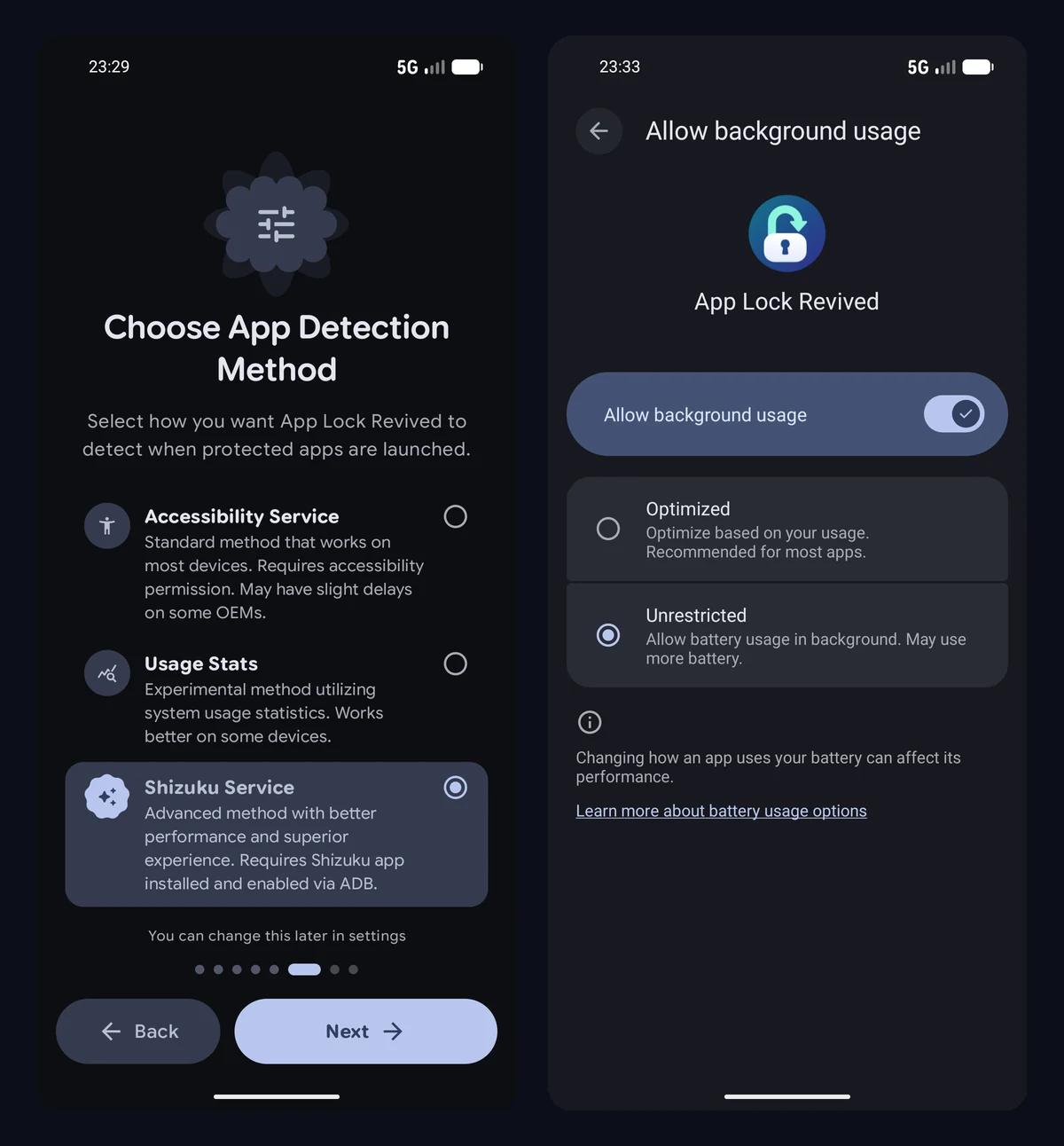
On Samsung Galaxy devices running One UI 8 or One UI 9, add one extra safeguard: navigate to Settings > Battery > Background usage limits > Never auto sleeping apps and add both AppLock Revived and Shizuku. On workstations connected via ADB, you can verify that Android’s Doze whitelist holds both packages cleanly:
# Verify both packages are exempted from Android Doze idle restrictions
adb shell dumpsys deviceidle whitelist | grep -E "dev.riyadm.applock|moe.shizuku.privileged.api"

# Manually add Doze exemptions via ADB if your OEM skin hides the toggle
adb shell dumpsys deviceidle whitelist +dev.riyadm.applock
adb shell dumpsys deviceidle whitelist +moe.shizuku.privileged.api
Step 3: Lock Banking Apps, Crypto Wallets, and Photo Pickers
Hardening financial software in AppLock Revived requires combining per-app Two-Step Verification with a scrambled PIN keypad, Device Admin anti-uninstall protection, and Android Photo Picker locking. Securing both System Settings and media pickers closes the common loopholes that let intruders clear app data or attach private gallery images through unlocked messengers.
Rather than applying a uniform single-tap fingerprint lock to every application, AppLock Revived lets you tailor authentication strength per package. Apply the following hardened rule stack inside the app’s main list and Settings > Security panel:
- Per-App Two-Step Verification for High-Risk Finance: Toggle protection on for your banking apps, password manager (Bitwarden, KeePassDX), TOTP authenticator (Aegis), and self-custody open-source crypto wallets for Android. Tap each high-value app’s individual configuration icon and set its lock method to Two-step (Biometric + PIN). Even if someone forces a fingerprint unlock or obtains your primary screen PIN alone, opening the wallet requires both factors sequentially.
- Scrambled PIN Keypad & Brute-Force Lockout: Enable Scramble PIN keypad to randomize number placement on every prompt, neutralizing smudge trails and over-the-shoulder observation in cafes or transit. AppLock Revived’s touch-down digit registration (v3.1+) keeps scrambled entry responsive, while built-in brute-force protection exponentially doubles cooldown delays after repeated failed attempts.
- Lock Android’s Photo Picker & File Picker: Even on native One UI 9.5 and Android 17 QPR3, locking your Gallery app leaves a classic loophole: opening an unlocked messaging app or browser and tapping “Attach photo” launches Android’s system Photo Picker or DocumentsUI file picker, displaying private camera roll images. Enable AppLock Revived’s dedicated Photo and File Picker lock toggle so media attachment sheets demand authentication as well.
- Anti-Uninstall Protection & System App Lockdown: Enable Anti-uninstall protection (which registers AppLock Revived as a Device Administrator with a safe recovery path) and lock both Settings (
com.android.settings) and Package Installer. Locking System Settings prevents someone from opening App Info to tap Force stop or Clear storage. - Close Locked Apps on Screen Off & Auto-Lock New Installs: Toggle on Close locked apps when screen turns off so unlocked sessions never linger in Recents after pocketing your phone, and enable Lock newly installed apps automatically so fresh financial or messaging installs receive immediate coverage.
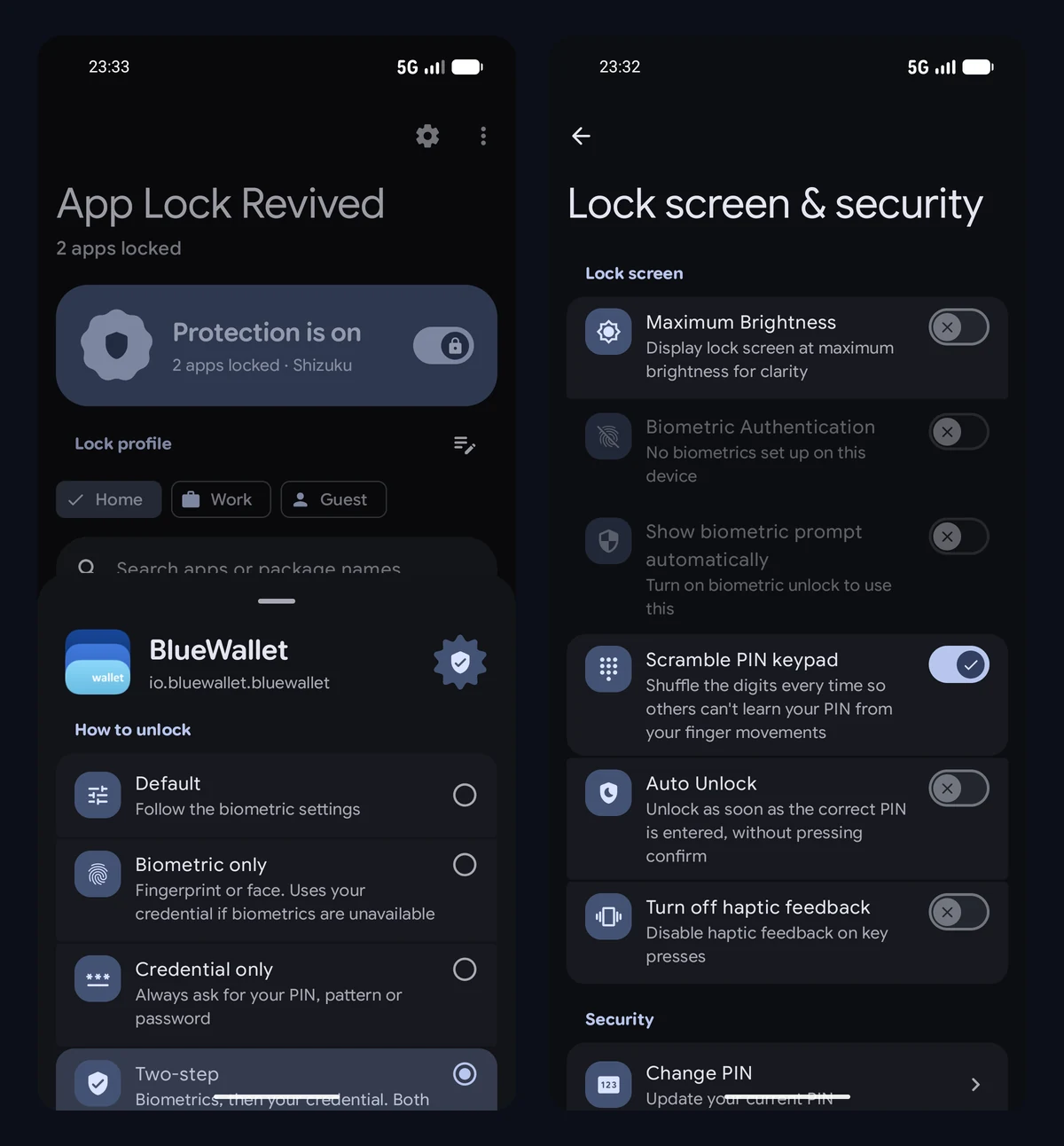
Profiles, Trusted Wi-Fi, Trigger Exclusions, and Intruder Selfies
Lock Profiles, Trigger Exclusions, Trusted Wi-Fi, and local Intruder Selfies balance strict access control with everyday usability. Grouping applications into Home, Work, and Guest profiles lets you switch lock policies from Quick Settings, while Trigger Exclusions stop repetitive authentication prompts when jumping between password managers, authenticators, and locked banking apps.
Three advanced workflow controls set AppLock Revived apart from both legacy lockers and first-generation OEM implementations:
- Context-Aware Lock Profiles & Quick Settings Tiles: Configure separate Home, Work, and Guest profiles, each holding its own locked app bundle and re-lock timeout (immediate, timed grace window, or screen-off). Pin both the Lock profile tile and the Lock all now tile to Android’s Quick Settings shade so you can switch to a strict Guest profile in two taps right before handing your phone to a friend or child.
- Trusted Wi-Fi with Hardened Invariants: Under Trusted Wi-Fi (which requests location permission strictly because Android gates Wi-Fi SSID names behind location), you can relax standard social and gallery locks on your home router. Crucially, AppLock Revived enforces a strict safety invariant: Two-step apps and AppLock Revived itself stay locked on every network, and stepping out of Wi-Fi range re-locks all apps immediately.
- Trigger Exclusions & Intruder Selfies: Add your software keyboard, autofill service, and helper dialogs under Trigger exclusions so hopping between a password manager or 2FA token app and a locked banking app does not trigger frustrating relock loops. Next, enable opt-in Intruder selfie (set to 2 or 3 wrong attempts) to snap a silent front-camera photo stored strictly on-device, excluded from Android backups, and pruned automatically alongside your 1-, 7-, or 30-day unlock history.
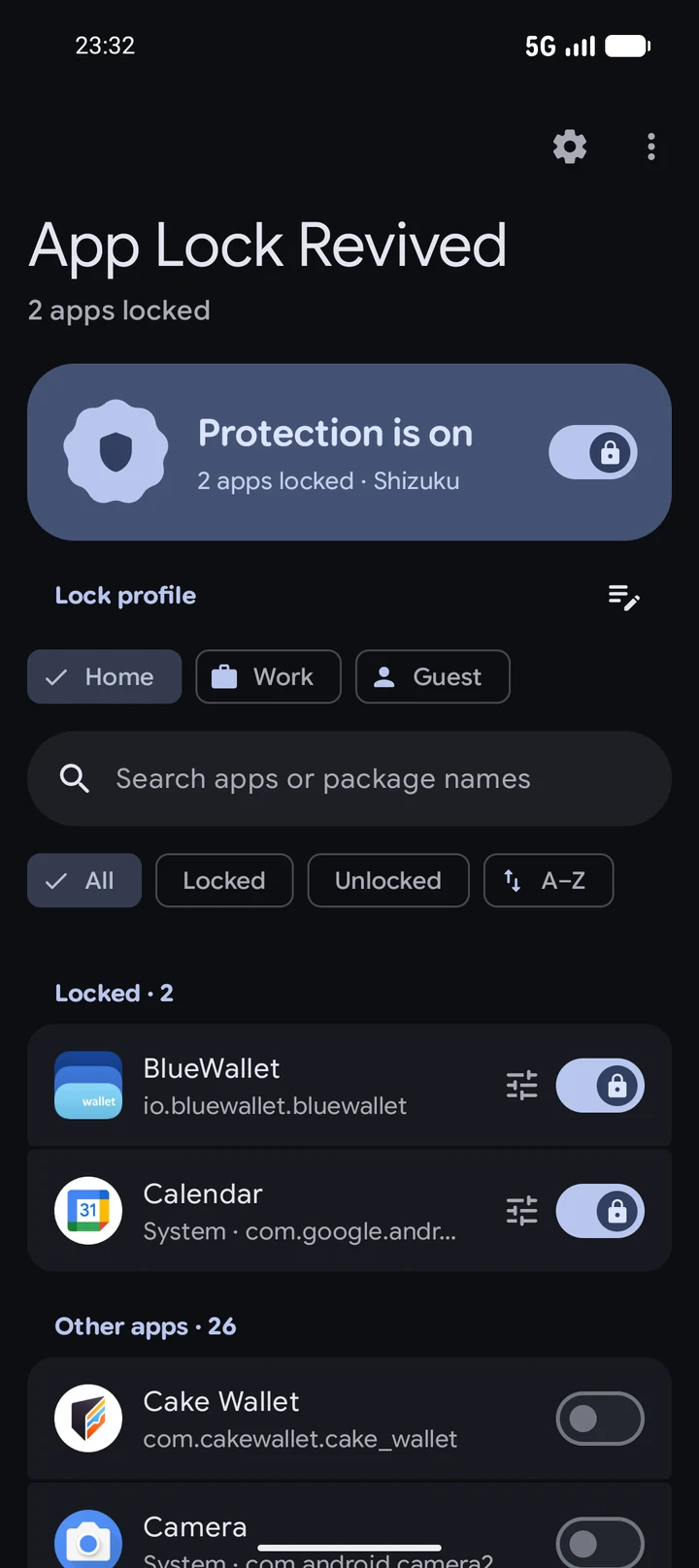
Once your profiles and exclusions are dialed in, export an AES-256-GCM password-encrypted backup under Settings (AppLock Revived never exports your PIN or pattern inside backup files). Power users running Tasker, MacroDroid, or Termux can also trigger an instant panic lock via AppLock Revived’s explicit automation broadcast API after enabling Settings > Automation > Allow automation apps and granting dev.riyadm.applock.permission.AUTOMATION:
# Immediately re-lock every protected app from ADB, Termux, or an authorized automation tool
adb shell am broadcast -a dev.riyadm.applock.action.LOCK_ALL_NOW -p dev.riyadm.applock

# Re-enable protection programmatically via explicit broadcast
adb shell am broadcast -a dev.riyadm.applock.action.ENABLE_PROTECTION -p dev.riyadm.applock
If you keep secondary brokerage, shopping, or social applications installed that you only open once a month, consider pairing AppLock Revived with hibernation: you can freeze background apps via Hail and Shizuku so dormant packages disappear from your launcher completely and consume zero background RAM until you thaw them.
Security Boundaries: Honest Threat Model for User-Space App Lockers
User-space app lockers defend effectively against shoulder surfing, casual device sharing, and opportunistic snooping, but they cannot enforce kernel-level storage encryption or survive Android Safe Mode reboots. For physical theft resistance, hidden notifications, or forensic isolation, rely on Android Private Space, Samsung Secure Folder, or GrapheneOS secondary user profiles.
Evaluating any security utility accurately requires separating real-world convenience protection from hard cryptographic boundaries. AppLock Revived excels within its intended threat model: stopping friends, family members, children, or coworkers holding your unlocked phone from opening banking dashboards, reading private chats, or scrolling through photo pickers. Its instant opaque lock shield, FLAG_SECURE screen-recording block, PBKDF2-HMAC-SHA256 credential storage, and scrambled keypad make casual bypassing extremely difficult.
However, three structural limitations apply to every third-party user-space app locker on stock Android:
- Notifications and Home-Screen Widgets Remain Visible: Unlike native Android 17 QPR3 or One UI 9.5, Android’s sandbox prevents a third-party locker from dynamically removing another app’s widgets or redacting incoming notification banners. Mitigate this manually by deleting sensitive home-screen widgets and setting lock-screen or sensitive notification channels to hide message previews.
- Android Safe Mode & Reboot Gaps: Any knowledgeable attacker with extended physical access to an unlocked device can hold the power menu, reboot into Android Safe Mode, and temporarily prevent all third-party services (including AppLock Revived) from starting. Additionally, Shizuku stops after every normal reboot until manually restarted over Wi-Fi, leaving a brief window unless you either switch to Usage Statistics or rely on a strong primary lock-screen passphrase.
- Shared User-Profile File Encryption: A user-space overlay does not encrypt an app’s private SQLite databases with a separate key from your primary Android user profile. If your threat model includes targeted physical theft, device confiscation, or high-value cryptocurrency signing keys, move those apps into OS-isolated containers: Android Private Space (Android 15+), Samsung Secure Folder (Knox hardware-backed workspace), or a dedicated GrapheneOS Secondary User Profile with an independent passphrase and automatic session end.
To layer network filtering, rootless debloating, and private messaging on top of per-app locking, explore our Android privacy engineering guides and browse verified open-source utilities across our Android apps archive.
Frequently Asked Questions
Why does AppLock Revived stop locking apps after a few hours on Samsung One UI or Xiaomi HyperOS?
Aggressive OEM battery managers on Samsung One UI and Xiaomi HyperOS terminate background monitoring services to conserve standby power. Set Battery usage to Unrestricted for both AppLock Revived and Shizuku, add AppLock Revived to Samsung’s Never auto sleeping apps list, enable Xiaomi Autostart, and keep its persistent notification enabled.
Can someone bypass AppLock Revived by force-stopping or uninstalling the app?
A casual intruder cannot uninstall or force-stop AppLock Revived if you enable Anti-uninstall protection via Device Admin and add Android Settings and Package Installer to your locked app list. However, someone with extended physical possession can still disable any user-space app locker by rebooting the handset into Android Safe Mode.
Is AppLock Revived Shizuku mode safer and lighter on battery than Accessibility Service mode?
Yes. Shizuku mode isolates foreground app monitoring inside Android’s standard UID 2000 ADB shell interface without requesting Accessibility Service permissions that expose screen text or trigger banking app security warnings. Starting with v3.1.1, both Shizuku and Usage Statistics pause polling completely whenever the screen turns off, keeping standby battery drain negligible.
Will Google backport Android 17 QPR3 native App Lock to older Android 14, 15, or 16 phones?
No. Google confirmed in November 2026 that native Android 17 QPR3 App Lock relies on new core Android platform APIs and cannot be delivered to Android 14, 15, or 16 devices via Google Play system updates. Only handsets receiving a full Android 17 QPR3 or One UI 9.5 OS upgrade gain it natively.
Leave a Reply