
Moving large video captures, folders of RAW photographs, or freshly compiled APK packages across Android, Linux, macOS, and Windows workstations remains frustratingly fragmented in 2026. Mainstream technology ecosystems maintain proprietary barriers around their native transfer utilities. Apple restricts AirDrop exclusively to iOS and macOS hardware, while Google Quick Share focuses primarily on Android and Windows, leaving multi-platform homelab engineers and developers without a unified, private local transfer solution.
LocalSend (localsend/localsend) eliminates these operating system boundaries entirely. Developed by Tien Do Nam and engineered with Flutter and Rust, LocalSend is a completely free, open-source (Apache-2.0) cross-platform file-sharing utility operating over your local Wi-Fi subnet or offline mobile hotspot. It requires zero cloud relays, zero accounts, and zero internet connectivity, utilizing temporary TLS encryption generated dynamically on each device. In this comprehensive 2026 setup guide, we walk you through the verified LocalSend APK download process (v1.18.2), automated updates via Obtainium, configuring one-tap Quick Save, and routing high-speed transfers across Android, Linux, macOS, and Windows.
org.localsend.localsend_app)Key Takeaways
- True Air-Gapped Performance: Transfers operate strictly over local UDP multicast (port 53317) and internal HTTP/HTTPS REST endpoints, reaching 60 MB/s to 120+ MB/s over modern Wi-Fi 6E and Wi-Fi 7 networks without touching external servers.
- Universal Cross-Platform Parity: Identical high-performance client binaries available across Android, Linux (DEB, Flatpak, AppImage), macOS (Apple Silicon and Intel DMG), Windows, and iOS.
- Browser-Based Fallback: Built-in lightweight HTTP server mode allows sending files directly to any phone or computer using a local QR code and standard web browser without installing the app.
How LocalSend Works: Decentralized REST API & Multicast Discovery
LocalSend operates as a decentralized local network transfer tool using peer-to-peer REST endpoints and UDP multicast beaconing. Unlike web-based share utilities that depend on an internet connection to contact public WebRTC signaling servers, LocalSend functions entirely within your internal local area network without external DNS queries.
- Subnet Multicast Beaconing: LocalSend uses UDP multicast address
224.0.0.167on port53317to announce active peers. Devices discover each other instantaneously upon launching the app on the same Wi-Fi network or VLAN. - Dynamic Ephemeral TLS: During initial discovery, devices negotiate mutual TLS handshakes using self-signed certificates generated on the fly. This prevents man-in-the-middle packet capture and payload snooping on shared coffee shop or university networks.
- Direct Socket Streaming: File payloads stream directly over TCP sockets between client IP addresses, maximizing local router bandwidth and bypassing cloud upload bottlenecks.
LocalSend vs Quick Share & AirDrop: Cross-Platform File Sharing Comparison
Selecting an efficient local file-sharing utility requires assessing cross-platform operating system support, tracker telemetry, offline reliability, and encryption standards. When comparing LocalSend vs Quick Share and LocalSend vs AirDrop, LocalSend is the only tool that bridges mobile and desktop operating systems without cloud relays. Furthermore, unlike continuous synchronization engines like Syncthing-Fork APK for Android that continuously monitor and replicate folders in the background, LocalSend is purpose-built for zero-friction ad-hoc transfers. This comparative matrix details how LocalSend contrasts with proprietary vendor tools, background sync engines, and browser-based WebRTC utilities across late 2026 workflows.
| Capability / Feature | LocalSend (v1.18.2) | Google Quick Share | Apple AirDrop | Syncthing-Fork | Snapdrop / PairDrop |
|---|---|---|---|---|---|
| Primary Transfer Model | Instant Ad-Hoc Transfers | Vendor Ecosystem Push | Apple Ecosystem Push | Continuous Two-Way Sync | Ephemeral WebRTC Share |
| Android & Linux Support | Yes (Native Client) | No (Android & Windows only) | No (Apple Only) | Yes (Native Daemon) | Yes (Browser WebRTC) |
| macOS & Windows Support | Yes (Native Client) | Windows Only | macOS Only | Yes (Native Daemon) | Yes (Browser WebRTC) |
| True Offline (Zero Internet) | Yes (LAN / Hotspot) | Yes | Yes | Yes (Local Discovery) | No (Signaling Server Needed) |
| Browser Download Mode | Yes (Local HTTP Server) | No | No | No (Daemon Required) | Yes |
| License & Auditing | 100% Open-Source (Apache-2.0) | Proprietary Closed | Proprietary Closed | MPL-2.0 | GPL-3.0 |
| Background Telemetry | Zero Trackers | Google Play Services Telemetry | Apple Analytics | Zero Trackers | Host Provider Logs |
For homelab operators who need a permanent centralized storage hub rather than direct ad-hoc peer transfers, pair LocalSend with our guide on self-hosting Nextcloud AIO in Docker to manage large remote file archives alongside fast local sharing.
Step 1: Download & Install LocalSend Across Your Devices
Installing LocalSend requires grabbing the authentic release binaries directly from the verified upstream developer repository. On Android devices, pairing LocalSend with an automated GitHub package manager ensures immediate access to security updates without proprietary app store delays.
| Specification | Verified Engineering Baseline |
|---|---|
| Application Name | LocalSend (Cross-Platform LAN Sharing) |
| Package Identifier | org.localsend.localsend_app |
| Latest Verified Release | LocalSend v1.18.2 (Official GitHub Tag) |
| Target Architecture (Android) | arm64-v8a (recommended) / armeabi-v7a / x86_64 |
| Official Source Repository | localsend/localsend (GitHub) |
| Direct APK Asset (64-bit ARM) | LocalSend-1.18.2-android-arm64v8.apk (44.4 MB) |
- On Android: Download the verified 64-bit APK asset directly from the official LocalSend GitHub Releases Page. If needed, consult our guide on how to enable unknown sources on Android. For seamless background updates, add the repository URL to Obtainium APK.
- On Ubuntu & Debian Linux: Install via Flatpak by running
flatpak install flathub org.localsend.localsend_app, or download the official native.debpackage from GitHub. - On macOS: Install via Homebrew by executing
brew install --cask localsendin Terminal, or mount the official Apple Silicon DMG installer. - On Windows 11: Install via Microsoft Windows Package Manager by running
winget install LocalSend.LocalSendin PowerShell.
Sideloading LocalSend APK on Android TV & Amazon Firestick
To transfer APK packages, emulators, and ROM files to living-room television setups without cumbersome USB flash drives, you can sideload LocalSend directly onto Android TV, Google TV, and Amazon Fire TV sticks. Download the authentic arm64-v8a (or armeabi-v7a for older Fire TV devices) APK via the Downloader app by entering the direct GitHub release URL. Because LocalSend uses responsive Flutter layouts, you can navigate its interface seamlessly using standard TV remote D-pads, making it the fastest wireless conduit for sideloading home theater apps on modern hardware like the Google TV Streamer and top Google Chromecast alternatives.
Step 2: Sending Files, Folders, Clipboard Text & APKs
Initiating a file transfer with LocalSend requires opening the application on both sender and recipient devices connected to the same local network subnet. Once running, discovery happens within two seconds, presenting nearby devices as intuitive color-coded cards ready for immediate transmission.
- Launch LocalSend on both devices. Each endpoint will display a fun, randomly assigned human alias (such as “Curious Apple” or “Swift Dolphin”) alongside its local IP address.
- On the sending device, select the Send tab. Tap File, Folder, Media, or Text (useful for pasting passwords and verification codes instantly without third-party cloud clipboards).
- Select your desired assets. You can queue multiple gigabytes of uncompressed video files and nested directory trees simultaneously.
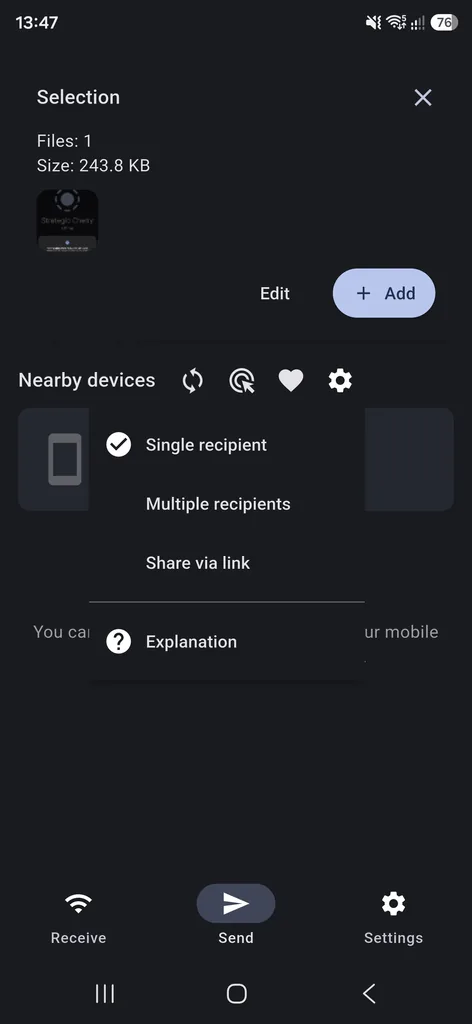
- Under the “Nearby devices” panel, tap the destination client.
- A notification prompt will appear on the receiving device showing the sender alias, IP address, file count, and payload size. Tap Accept to begin the encrypted stream.
Step 3: Enabling Quick Save for Trusted Personal Devices
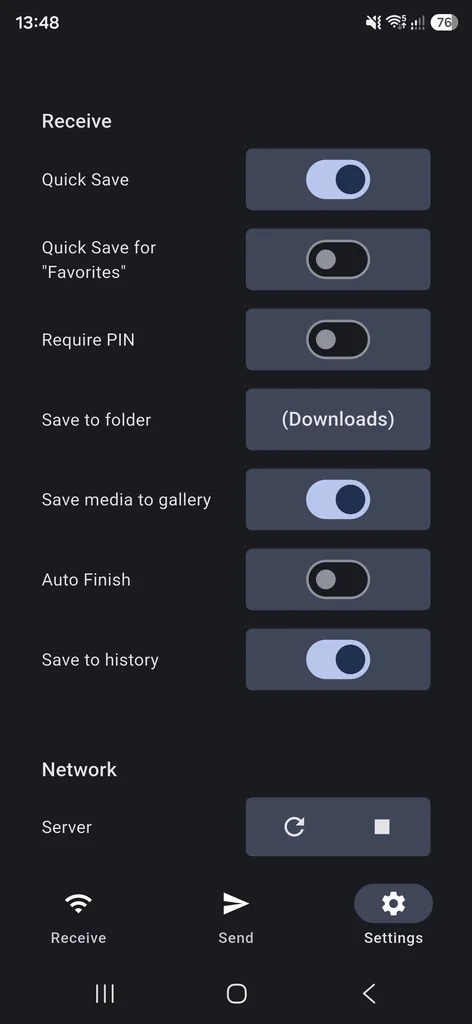
Configuring the Quick Save feature eliminates repetitive confirmation prompts when transferring files between your own personal computers and phones. By whitelisting trusted device fingerprints, LocalSend automatically accepts incoming payloads and saves them to a designated directory for zero-friction productivity.
- On your primary workstation or phone, navigate to Settings within LocalSend.
- Locate the Receive section and toggle Quick Save to enabled.
- Select Destination Directory and set a dedicated folder, such as
~/Downloads/LocalSend/or your external storage mount. - Under Device Favorites, mark your personal devices as trusted. When receiving files from favorited endpoints, transfers proceed automatically without requiring manual tap confirmations.
Step 4: Share via Browser Mode (Sending to Uninstalled Devices)
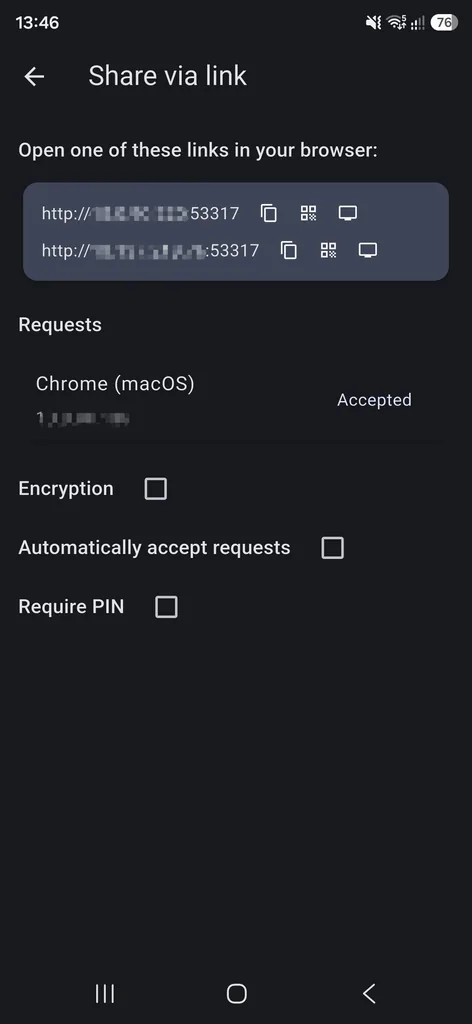
Using LocalSend browser share mode lets you transfer files to devices that do not have the LocalSend client installed. This feature turns your phone into an ephemeral local web server, generating a direct HTTP download link and QR code accessible from any standard web browser on the same Wi-Fi network.
- In LocalSend, navigate to the Send tab and select the files you wish to share.
- Tap the Share via link option at the bottom of the screen.
- LocalSend activates an internal lightweight HTTP server and renders a scannable QR code alongside a local URL (e.g.,
http://192.168.1.150:53317). - Have the recipient scan the QR code using their camera app or enter the URL directly into Chrome, Firefox, or Safari.
- The browser opens a clean web interface listing your queued files. The recipient can download all assets with a single tap. Once finished, tap Stop in LocalSend to terminate the server.
Step 5: High-Speed Transfers via Offline Mobile Hotspot
Transferring files in remote locations without a Wi-Fi router requires creating a mobile hotspot on your Android device. LocalSend functions completely without cellular data, allowing you to transfer gigabytes of media on airplanes, camping sites, or remote server rooms at maximum physical wireless speeds.
- On your Android phone, enable Mobile Hotspot. You can safely turn cellular mobile data off to prevent data usage.
- Connect your laptop, tablet, or secondary phone to the Android hotspot Wi-Fi network.
- Open LocalSend on both devices. Because the hotspot router assigns standard IPv4 addresses (typically
192.168.43.x), multicast beaconing discovers both peers instantly. - Initiate your file transfer. Transfers stream over direct Wi-Fi 6 or Wi-Fi 7 radio links at speeds upwards of 80 MB/s, completely bypassing internet meters.
Physical Transfer Fallback: When wireless radios must remain powered off entirely – such as in secure air-gapped environments or commercial airline flights – carrying a pocketable dual-connector flash drive like the SanDisk Ultra Dual Drive Luxe USB-C (reviewed in our 8 best tech stocking stuffers under 0) gives you an instant zero-trust sneakernet alternative between Android, Linux, and Windows machines.
Troubleshooting LocalSend Issues & Firewall Diagnostics
Resolving transfer hiccups in LocalSend typically involves opening specific network ports, adjusting router band steering, or granting modern storage permissions. If two devices cannot communicate, follow these targeted engineering fixes.
How to Fix LocalSend Not Working & Peer Discovery Failures
When nearby devices fail to appear in LocalSend, the root cause is almost always Access Point (AP) Isolation on your Wi-Fi router or a restrictive desktop firewall. On Ubuntu and Debian Linux, allow UDP multicast and TCP socket connections on port 53317 by executing:
sudo ufw allow in proto udp to any port 53317
sudo ufw allow in proto tcp to any port 53317
If your router enforces AP Isolation (common on guest Wi-Fi networks), bypass it by tapping the three dots in LocalSend, choosing Direct IP, and typing the recipient local IP address (e.g., 192.168.1.120) manually.
How to Fix LocalSend Slow Transfer Speeds (2.4 GHz vs 5 GHz)
If LocalSend transfers crawl at 2 to 5 MB/s, your router has likely steered one or both devices onto congested 2.4 GHz bands. To achieve maximum throughput (60 to 120+ MB/s), ensure both sending and receiving devices are connected to a dedicated 5 GHz, 6 GHz (Wi-Fi 6E), or Wi-Fi 7 SSID with channel bandwidth set to 80 MHz or 160 MHz. Alternatively, fire up an offline mobile hotspot from your phone as described in Step 5 for full line-rate wireless speed.
How to Fix LocalSend Error 500 & Storage Permission Issues
An HTTP Error 500 in LocalSend occurs on Android 14, Android 15, and Android 16 when the application attempts to write incoming payloads into restricted system directories without Scoped Storage authorization. To resolve this, open LocalSend Settings > Receive > Destination, select a standard public directory such as Downloads, and grant full file management access when prompted by the operating system.
Frequently Asked Questions (FAQ)
These concise technical answers address the most common configuration and security inquiries regarding LocalSend deployment across modern operating systems.
Does LocalSend require an active internet connection to work?
No, LocalSend operates completely offline. All payload transfers stream directly between device IP addresses over your local wireless router or mobile hotspot. No internet access, external server relays, or DNS lookups are required.
Is LocalSend safe to use on shared or public Wi-Fi networks?
LocalSend secures all communications with on-the-fly TLS encryption using self-signed cryptographic certificates generated on each device startup. Third-party packet sniffers on shared Wi-Fi networks can only see encrypted ciphertext, ensuring your files and clipboard contents remain completely private.
Are there any file size or bandwidth limitations in LocalSend?
No, LocalSend does not enforce file size caps, compression algorithms, or artificial bandwidth throttling. You can transfer single 50 GB disk images or thousands of RAW photo files at the full physical capability of your Wi-Fi router hardware.
Can LocalSend receive files in the background on Android?
Yes, LocalSend includes a background service option in Settings. To prevent Android aggressive battery management from killing transfers when your screen locks, go to Android Settings > Apps > LocalSend > Battery and select Unrestricted.
Leave a Reply