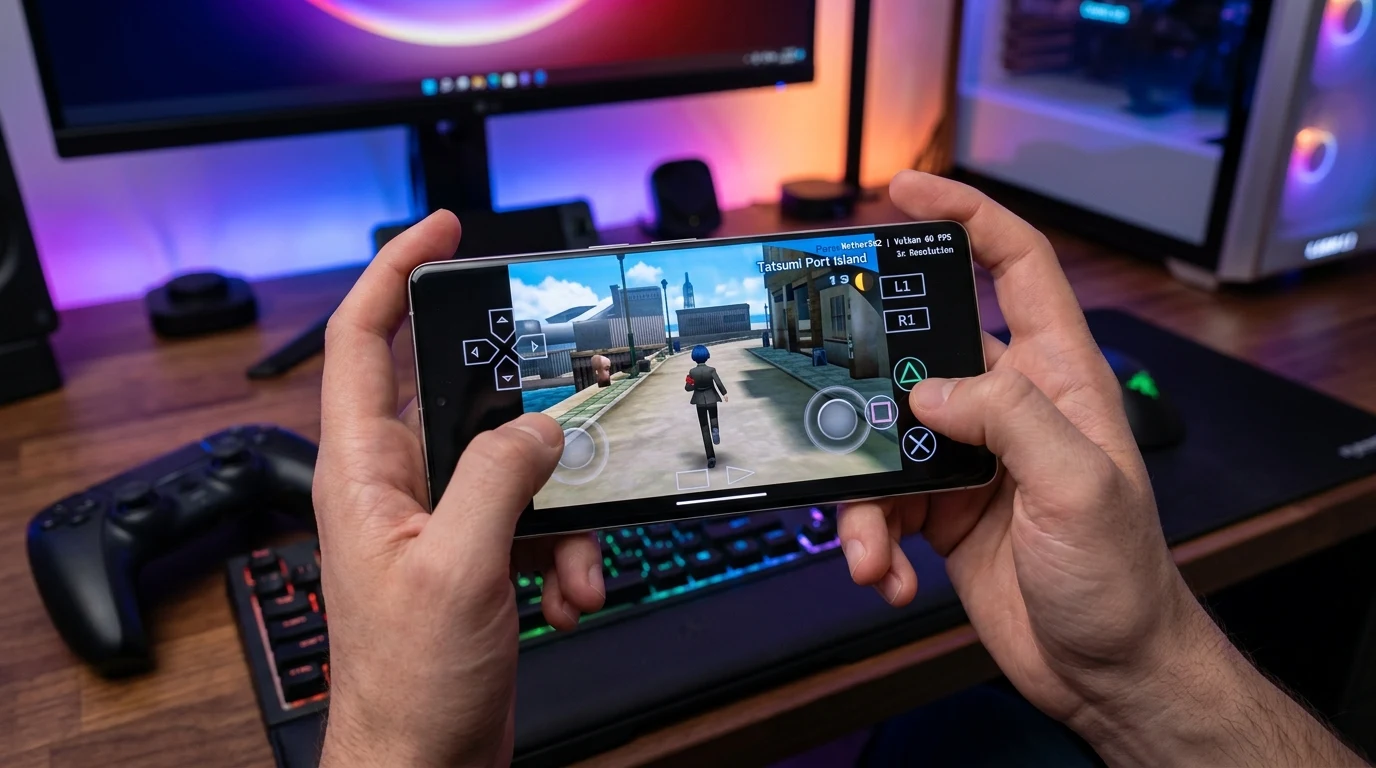
PlayStation 2 emulation on Android has undergone a dramatic renaissance. For years, running legendary classics like God of War II, Shadow of the Colossus, Gran Turismo 4, and Burnout 3: Takedown required either a high-powered desktop PC or cumbersome translation layers. Today, modern mobile chipsets paired with community-optimized emulation software can render full PS2 titles at up to 3x native 1080p resolution at an unyielding 60 frames per second.
At the center of modern mobile PS2 gaming is NetherSX2, the open-source community continuation of the discontinued AetherSX2 emulator. Built to strip out intrusive advertisements, fix rendering regressions, and restore clean Vulkan backend compatibility, NetherSX2 is the definitive PS2 emulator for Android in 2026. In this comprehensive step-by-step setup guide, we walk you through acquiring safe NetherSX2 builds, dumping your legitimate PS2 BIOS, organizing storage-saving CHD game libraries, configuring optimal Vulkan graphics settings, and mapping physical Bluetooth controllers.
What Happened to AetherSX2 & Why NetherSX2 Exists
To understand why NetherSX2 is necessary, a brief look at emulation history is helpful. When developer Tahlreth initially released AetherSX2 in 2021, it revolutionized mobile gaming by providing near-flawless Sony PlayStation 2 emulation using an optimized ARM64 port of the desktop PCSX2 code base. However, following personal burnout and harassment from internet trolls, the original developer halted active development in early 2023, pulled the app from the Google Play Store, and released an experimental final build that unfortunately included ad networks.
Recognizing the importance of preserving open, telemetry-free emulation, the Android community – led by developer Trixarian and contributors on GitHub – developed the NetherSX2 patch. NetherSX2 achieves several crucial goals:
- Total Ad & Telemetry Removal: Completely excises Google AdMob banners and background analytics tracking code.
- Restored Frontend Functionality: Restores front-end features disabled in late AetherSX2 releases, including custom per-game controller bindings and full scoped storage directory browsing.
- Updated Controller Profiles: Expands native USB and Bluetooth gamepad profiles for modern controllers like the Sony DualSense, Xbox Series X/S controller, and USB-C telescopic grips.
- Expanded Widescreen & 60 FPS Patches: Integrates community widescreen engine fixes that eliminate stretching on 20:9 modern smartphone displays.
Hardware Requirements: What Processor Do You Need?
PS2 architecture (the Emotion Engine CPU and Graphics Synthesizer) is notoriously complex to emulate. Unlike lighter consoles like the PSP or PS1, running full 3D PS2 titles demands robust 64-bit multi-core CPU performance and high memory bandwidth (confirm your chip is arm64-v8a using our Android version and CPU architecture guide):
| Hardware Spec | Minimum (Playable 2D & Light 3D) | Recommended (Smooth 60 FPS 2x–3x Upscaled) |
|---|---|---|
| Processor (SoC) | Snapdragon 680 / Helio G99 / Dimensity 700 | Snapdragon 870 / 8 Gen 1 / 8 Gen 2 / 8 Gen 3 / 8 Elite |
| GPU Architecture | Adreno 610 / Mali-G57 (OpenGL / Vulkan 1.1) | Adreno 660, 730, 740, 750 (with Vulkan 1.3+) |
| System RAM | 4 GB LPDDR4X | 8 GB – 12 GB LPDDR5X |
| Storage Type | eMMC 5.1 / UFS 2.1 (15 GB free space) | UFS 3.1 / UFS 4.0 fast internal storage |
| Operating System | Android 10 (ARM64 only) | Android 13, 14, 15, or 16 |
Pro Tip on Chipsets: Similar to our findings in our Winlator PC Gaming Setup Guide, Qualcomm Snapdragon processors consistently outperform MediaTek Dimensity and Samsung Exynos chips in NetherSX2. Snapdragon’s Adreno graphics drivers implement desktop-compliant Vulkan extensions with significantly lower driver overhead.
Step 1: Download the Authentic NetherSX2 APK
Because NetherSX2 is distributed as a clean community modification, rogue websites frequently package fake APKs laden with aggressive adware. Always obtain the build directly from the verified community repository:
- Visit the official Trixarian NetherSX2-patch GitHub Repository.
- Navigate to the Releases section.
- Select your preferred edition:
- NetherSX2 Classic (v3668 branch): Based on the legendary, ultra-stable v1.4 build. This branch offers the highest framerates on budget or mid-range devices with older processors.
- NetherSX2 Modern (v4248 branch): Based on the latest PCSX2 core sync. Ideal for flagship Snapdragon 8-series devices, offering superior compatibility with tricky games like Champions: Return to Arms.
- Download the pre-built
NetherSX2.apkasset (or build it locally using the repository’s automated web patcher script). - Install the APK by granting your file browser standard unknown sources installation permissions.
Step 2: Sourcing & Loading the PS2 BIOS File
Under copyright law, emulators cannot legally distribute proprietary Sony firmware. NetherSX2 requires a PlayStation 2 BIOS dump extracted from your own physical hardware console:
- Extract a clean BIOS file from your physical PS2 console (commonly named
SCPH-70012.bin,SCPH-90001.bin, orSCPH-39001.binfor NTSC-U / PAL / NTSC-J units). - Using your device file manager, create a dedicated folder on your smartphone’s internal storage, such as
/Internal Storage/Emulation/PS2/BIOS/. - Copy your
.binBIOS file into this directory. - Launch NetherSX2 for the first time. The initial setup wizard will prompt you to Select BIOS.
- Tap Import BIOS, navigate to your created BIOS folder, select your
.binfile, and choose it as the primary boot firmware.
Step 3: Organizing Games & Compressing to CHD
Standard PS2 DVD ISO files weigh between 4 GB and 4.7 GB each, which rapidly depletes smartphone storage. NetherSX2 natively supports CHD (MAME Compressed Hunks of Data), a lossless compression format that preserves byte-for-byte disc integrity while reducing game sizes by 30% to 60%:
- How to Convert: On your PC, download the open-source
chdmantool (bundled with MAME). Place your game ISOs into the same directory and execute:chdman createcd -i "GameName.iso" -o "GameName.chd" - Transfer to Phone: Place your
.chdor.isogame backups into a dedicated directory on your phone, e.g.,/Internal Storage/Emulation/PS2/Games/. - Directory Scan: In NetherSX2, tap the + (Add Directory) icon, point the app to your games folder, and grant Android Scoped Storage access. NetherSX2 will scan your library and automatically fetch authentic cover art and game titles.
Step 4: Graphics & Performance Settings for 60 FPS
To maximize framerates and eliminate stuttering, configure these core global graphics settings in NetherSX2:
- Graphics Renderer: Set to Vulkan. Vulkan allows modern multi-core mobile processors to submit draw calls with near-zero driver bottlenecking. Switch to OpenGL only if a specific vintage title displays broken geometry under Vulkan.
- Upscaling Multiplier (Resolution):
- Budget / Mid-range chips (Helio G99, Snapdragon 778G): Set to 1.5x Native (720p).
- Upper-tier flagships (Snapdragon 8 Gen 2 / 8 Gen 3 / Elite): Set to 2.5x to 3x Native (1080p / 1440p) for razor-sharp visual fidelity.
- Aspect Ratio: Set to 16:9 or toggle Widescreen Patches to ON under Game Fixes. This renders real widescreen geometry without stretching 4:3 sprites.
- Affinity Control: Set to EE, GS, VU1 on Separate Threads (Multithreaded VU1). This utilizes multiple CPU performance cores simultaneously.
- Hardware Download Mode: Set to Accurate or Disable Readbacks (disabling readbacks provides a massive 15–20% FPS boost in demanding titles like Shadow of the Colossus).
Tested PS2 Games Compatibility Matrix (2026 Benchmarks)
Here are real-world performance benchmarks across popular PS2 titles tested in NetherSX2 on modern Snapdragon hardware:
| PS2 Game Title | Recommended Backend | Upscale Multiplier | EE Cycle Rate Setting | Average Framerate | Playability Rating |
|---|---|---|---|---|---|
| God of War II | Vulkan | 2.5x (1080p) | 100% (Normal) | 60 FPS (Full Speed) | Flawless |
| Shadow of the Colossus | Vulkan | 2.0x (900p) | 75% (-1 Underclock) | 55–60 FPS | Fully Playable |
| Grand Theft Auto: San Andreas | Vulkan | 3.0x (1440p) | 100% (Normal) | 60 FPS (Widescreen) | Flawless |
| Gran Turismo 4 | Vulkan | 2.0x (900p) | 100% (Normal) | 60 FPS (1080i Mode) | Flawless |
| Burnout 3: Takedown | Vulkan | 2.5x (1080p) | 100% (Normal) | 60 FPS | Flawless |
| Persona 4 | Vulkan | 3.0x (1440p) | 100% (Normal) | 60 FPS | Flawless (All SoCs) |
| Metal Gear Solid 3: Snake Eater | Vulkan / OpenGL | 2.0x (900p) | 75% (-1 Underclock) | 50–60 FPS | Fully Playable |
| Final Fantasy X | Vulkan | 3.0x (1440p) | 100% (Normal) | 60 FPS | Flawless (All SoCs) |
Step 5: Mapping Physical Gamepads & Touch Controls
While NetherSX2 provides a fully responsive on-screen virtual touch controller with haptic feedback, demanding action titles and racers are best experienced with physical analog sticks and triggers:
- Bluetooth Gamepads: Connect your Xbox Wireless Controller or Sony PlayStation DualSense via standard Android Bluetooth settings. Launch NetherSX2, open Controller Settings > Controller Port 1, tap Automatic Mapping, and press any button on your controller. NetherSX2 will bind all D-Pad, face buttons, analog thumbsticks, L1/L2/R1/R2 triggers, and L3/R3 clicks instantly.
- USB-C Telescopic Grips: Mobile controllers like the Razer Kishi, GameSir G8 Galileo, and Backbone One connect over direct Type-C with zero input latency. They are detected natively via standard XInput/HID protocols.
- Hiding On-Screen Touch Overlay: Under Controller Settings > Touchscreen, set Controller View to None when a physical controller is connected, ensuring an uncluttered, immersive cinematic display.
Want to get more out of your handset without root? Browse additional open-source tools in our Android apps library and Android guides.
Troubleshooting Common Emulation Glitches
If you encounter graphical artifacts or audio desync, apply these proven remedies:
Audio Stuttering or Crackling
Audio desync occurs when the CPU cannot keep up with full emulation speed (100%). Go to System Settings > EE Cycle Rate and reduce it to 75% (-1) or 60% (-2). This underclocks the virtual Emotion Engine, allowing weaker processors to maintain full 60 FPS audio synchronization.
Pink Screen or Missing Textures
This is an occasional Vulkan shader cache conflict. Clear the app’s shader cache in NetherSX2 settings, or temporarily switch the Graphics Renderer to OpenGL for that specific game profile.
Thermal Throttling After 20 Minutes
Intense PS2 emulation generates sustained processor heat. To prevent thermal throttling, pair your phone with our guide to debloat Android without root to eliminate background CPU wakelocks, and keep your screen brightness at 70%.
Frequently Asked Questions (FAQ)
Is using NetherSX2 legal?
Yes. Emulators are legal software reverse-engineered from public hardware specifications. NetherSX2 contains no proprietary code from Sony. However, you must extract your own PS2 BIOS from a console you legally own and rip game ISOs from your physical disc collection.
Can NetherSX2 run on budget MediaTek or Exynos phones?
Yes, lightweight 2D titles, JRPGs like Final Fantasy X, and fighting games like Tekken 5 will run well. For demanding open-world games like GTA San Andreas or Shadow of the Colossus, you will need to set resolution to 1x Native (480p) and enable EE Cycle Rate -1 underclocking.
What is the difference between ISO and CHD formats?
ISO is a raw uncompressed disc image, whereas CHD utilizes lossless zlib/lzma compression. Games in CHD format take up 30%–60% less storage space, load identically in NetherSX2, and experience zero quality degradation.
Do cheat codes and widescreen patches work in NetherSX2?
Yes. NetherSX2 supports standard PCSX2 `.pnach` patch files. Simply place your cheat file in the app’s `cheats/` directory or enable the built-in Widescreen Patches toggle in Game Fixes.
Final Thoughts
NetherSX2 proves the incredible power of open-source community preservation. By eradicating ads, polishing backend stability, and unlocking the full computing potential of modern mobile Vulkan graphics drivers, NetherSX2 transforms any modern Android device into the ultimate portable PlayStation 2 console.
Looking to explore more mobile gaming and power user setups? Discover our complete step-by-step guides to running Windows PC games on Android with Winlator APK, installing ReVanced Manager APK & GmsCore, and running private on-device AI models locally on Android.
Leave a Reply