
In November 2026, Dutch mobile security firm ThreatFabric disclosed Bazuka, a modular 23-DEX Android banking trojan framework that captures live screenshots of your home screen as deceptive overlays, hijacks Wireless Debugging over local TLS, and silently swaps cryptocurrency addresses in the clipboard. This Bazuka Android malware ADB hardening runbook delivers read-only workstation audit commands, safe Shizuku configuration rules, hardware-isolated crypto wallet defenses, and a verified containment playbook.
According to ThreatFabric’s November 18, 2026 Bazuka technical report, researchers uncovered the framework in late October 2026 while investigating an NFC card-relay incident. Two days later, The Hacker News analysis of Bazuka and ArcticRAT highlighted an alarming industry convergence: both Bazuka and Zimperium’s newly documented ArcticRAT pair large language model (LLM) operator panels with native Android Wireless Debugging abuse and stealthy screen-concealment overlays. Because power users routinely rely on Wireless Debugging for legitimate rootless tools like Shizuku and Hail, defending modern handsets in our Android security and power-user guides requires surgical permission auditing rather than abandoning open-source workflows.
Key Takeaways
- User-Space Modular Architecture (Zero OS CVEs): Bazuka is an unattributed malicious application framework combining a dropper/downloader, an in-memory DEX core loaded via
InMemoryDexClassLoader, and 23 modules over dual ChaCha20-Poly1305 WebSockets. Its current build has not yet implemented post-uninstall surviving ADB modules. - Wireless Debugging & Shizuku Coexistence: Bazuka’s
self_adbmodule requires Accessibility Services first to automate Developer Options and read the 6-digit pairing PIN. Toggling Wireless Debugging off (adb_wifi_enabled=0) after starting Shizuku and locking Android Restricted Settings blocks unattended ADB hijacking while preserving rootless utilities. - Multi-Chain Crypto Clipboard Defense: The
clip_monitormodule actively replaces copied BTC, ETH, TRC20, and SOL wallet addresses viagetPrimaryClip. Isolating wallets inside Android Private Space, Samsung Secure Folder (Knox), or GrapheneOS secondary user profiles breaks cross-profile clipboard interception.
How Bazuka Operates: Architecture, 23 Modules, and Defense Matrix
Bazuka is a modular Android fraud framework discovered by ThreatFabric in late October 2026 during an NFC relay investigation. Operating strictly in user space without any OS CVE, its droppers load a DEX core and 23 modules over dual encrypted WebSockets for overlays, keylogging, ADB control, and crypto address swapping.
ThreatFabric has not attributed Bazuka to any named cybercrime group, though the exposed control panel blends English and Russian interface labels while the core’s UI automation routines search for Android settings elements in English, Russian, Chinese, and Japanese. Distribution relies on affiliate “traffers” who run malvertising, smishing lures, and counterfeit Google Play landing pages. One documented VirusTotal dropper sample (TikTok18-Dropper-tiktok18-premium-1793332000-daf6efe2.apk, SHA-256: f046b50166c8229b49839eeebcc7fd14bf3f198e4ec1bfde8a5b271e1407dec5) masquerades as an adult TikTok client under package ID com.tiktok.premium. Once installed, it prompts the victim for “Install unknown apps” access and installs a stager APK named com.tiktok.premium.pro via Android’s PackageManager session API. Understanding how to configure Android Unknown Sources permissions safely stops this first-stage pivot before a stager ever touches disk.
Researchers also documented a direct downloader variant (SHA-256: 4d572669d6000304a692874c1583021dfdb4f2f113ea487e470f7e4c486e503a) that retrieves the DEX core (3cb8711a51331123247476eef768c435d6286a21cd8ac5479a6276349632c82b) and loads it straight from a byte array with InMemoryDexClassLoader so secondary DEX payloads never write plaintext files to local storage. Although Bazuka’s panel contains a selectable-permission dropper builder crafted to strip Accessibility declarations from the manifest in an apparent effort to pass Google Play screening, ThreatFabric confirmed zero evidence that any Bazuka sample actually bypassed Google Play review in the wild.
Once active, the core establishes dual WebSocket command-and-control (C2) channels over ports 8443 (Control) and 8444 (Data) targeting infrastructure such as subdomains of brokerok[.]org, encrypting frames with rotated ChaCha20-Poly1305 keys. Operators even query an integrated local or API-backed LLM inside the panel to compute victim value scores and plan permission click-through sequences, mirroring Zimperium’s November 2026 ArcticRAT disclosure where attackers combined LLM triage with a zero-brightness “Black Screen” Hidden VNC overlay. Bazuka takes a subtler visual approach: its optics and session_ui modules capture a live screenshot of your real home screen or lock screen and pin it on top as an interactive decoy while screen_control, input_recorder, self_adb, device_control, tapread-nfc_module, twofa, smsmessage, ussd, and proxy execute behind the frozen facade. Crucially, ThreatFabric notes an important architectural boundary: while ADB bridging is fast becoming a standard banking trojan capability that could eventually deploy independent persistence binaries surviving host app removal, Bazuka’s current architecture has not yet implemented post-uninstall surviving modules. Instead, its built-in self-destruct routine wipes local storage, drops its SQLite database, and disables its own package via setApplicationEnabledSetting(packageName, 3, 1).
| Bazuka Module | Android Permission Abused | Observable IOC / Symptom | Specific OS Hardening Control |
|---|---|---|---|
self_adb & device_control | Accessibility Services (UI automation) + local Wireless Debugging pairing PIN interception over TLS | Developer Options activates unexpectedly, Wireless Debugging flips on, or unknown paired ADB devices appear | Lock Android Restricted Settings, keep Wireless Debugging toggled OFF (adb_wifi_enabled=0) after starting Shizuku, and revoke stale ADB authorizations |
optics, session_ui & screen_control | SYSTEM_ALERT_WINDOW (Draw over apps), MediaProjection screencasting, and Accessibility Services | Static frozen home screen or lock screen with stuck clock and widgets, unresponsive icons, or unexplained Settings flashes | Audit SYSTEM_ALERT_WINDOW grants via ADB, deny Accessibility to sideloaded apps, and test live UI state via the hardware power menu |
clip_monitor | Accessibility event polling + ClipboardManager.getPrimaryClip read and write interception | Pasted BTC, ETH, TRC20, or SOL wallet address silently changes to an unfamiliar destination address | Isolate wallets in Android Private Space, Samsung Secure Folder (Knox), or GrapheneOS Secondary Profiles; verify first 8 and last 8 characters |
uninstall_shield | Accessibility Services (enableUninstallProtection priority queue) + Device Admin abuse attempts | Settings screen auto-presses Back or closes immediately when opening App Info, Uninstall, or Force Stop | Boot into Android Safe Mode to block all third-party Accessibility services, or remove over USB via adb uninstall |
tapread-nfc_module & twofa | NFC reader/HCE interface, Notification Listener, SMS permissions, and Accessibility Services | Fake bank prompts asking you to tap a physical debit card to the phone back, or missing SMS/TOTP notifications | Keep NFC toggled OFF unless actively paying, block sideloaded Notification Listeners, and migrate high-value logins to FIDO2 hardware keys |
Step 1: Audit Accessibility Services, Device Admins, and Sideloading via ADB
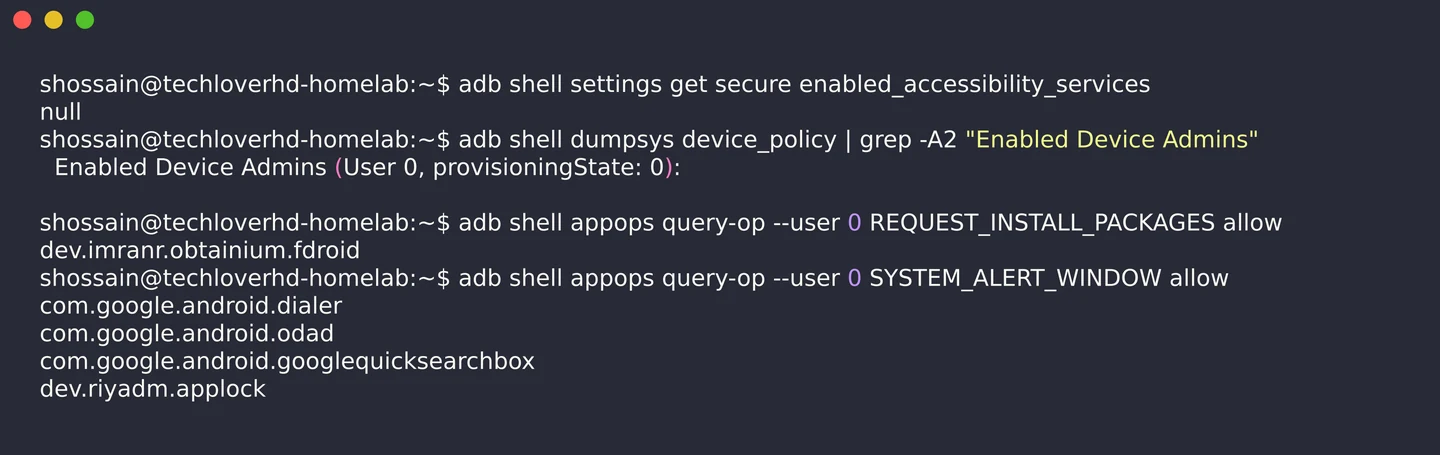
Auditing a suspect Android phone from a clean Linux, macOS, or Windows workstation with ADB takes under 60 seconds. Querying system services directly over USB bypasses fake home screen overlays from modules like optics. These six diagnostic commands expose active Accessibility bindings, unexpected Device Admins, sideloading grants, and rogue packages.
Connect your phone to a trusted workstation with a verified USB data cable, confirm the host RSA fingerprint prompt on screen, and verify communication with adb devices. Execute the following read-only audit sequence to capture the exact permission state from Android’s framework daemons:
# 1. Check active Accessibility Services (clean phones show only trusted utilities or null)
adb shell settings get secure enabled_accessibility_services

# 2. Dump bound Accessibility service descriptors and package names
adb shell dumpsys accessibility | grep -E "Service\[|packageName"

# 3. Inspect active Device Administrators for unexpected admin receivers
adb shell dumpsys device_policy

# 4. List apps holding Unknown Sources install permission and overlay draw access
adb shell appops query-op --user 0 REQUEST_INSTALL_PACKAGES allow
adb shell appops query-op --user 0 SYSTEM_ALERT_WINDOW allow

# 5. List every third-party user-installed package (flag decoys like com.tiktok.premium)
adb shell pm list packages -3
On Windows PowerShell, swap grep -E for Select-String -Pattern without modifying the underlying adb shell queries. Every command above is strictly read-only, touches zero user files, and completes in under two seconds on Android 16 and Android 17 handsets.
Interpreting Suspicious ADB Output and Bazuka IOCs
Clean Android devices list only known accessibility tools, zero unauthorized Device Admins, and strictly audited package installers under REQUEST_INSTALL_PACKAGES. Any unrecognized service under enabled_accessibility_services, unexpected SYSTEM_ALERT_WINDOW grant, or decoy package such as com.tiktok.premium or com.tiktok.premium.pro warrants immediate network isolation and forensic inspection before opening banking or wallet apps.
- Accessibility & Rebind Artifacts: Bazuka attempts to gain and maintain Accessibility access through the Settings intent, secure setting writes,
self_adb‘srebind_accessibilitycommand, and a broadcast namedcom.guidocool.cryptomanager.action.A11Y_REBIND. Treat any obscure “System Update,” “Support Assistant,” or media player package bound insideenabled_accessibility_servicesas a high-severity compromise. - Sideloading & Overlay Hygiene: Only explicit package managers you trust (such as Droid-ify, Obtainium, or Aurora Store) should appear under
REQUEST_INSTALL_PACKAGES allow. Web browsers, Telegram, WhatsApp, file managers, and video players should never retain standing APK installation rights after a one-off install. - Device Policy Check: Inside
dumpsys device_policy, verify that only Google Find Hub, Samsung Knox/Work Profile controllers, or your company’s known MDM agent appear under enabled admins.
If an unfamiliar package ID shows up in your third-party package dump, pull its installer provenance, compute the on-device base APK SHA-256 digest to compare against ThreatFabric’s published hashes, and strip its dangerous AppOps privileges immediately:
# Inspect installer source and timestamps (replace package ID with your suspect entry)
adb shell dumpsys package com.tiktok.premium | grep -E "installerPackageName|firstInstallTime|lastUpdateTime"

# Retrieve the on-device APK path and hash base.apk directly
adb shell pm path com.tiktok.premium
adb shell sha256sum /data/app/path-from-previous-command/base.apk

# Immediately revoke sideloading, screen overlay, and restricted settings overrides
adb shell appops set com.tiktok.premium REQUEST_INSTALL_PACKAGES deny
adb shell appops set com.tiktok.premium SYSTEM_ALERT_WINDOW deny
adb shell appops set com.tiktok.premium ACCESS_RESTRICTED_SETTINGS defaultStep 2: Harden Wireless Debugging and Shizuku Without Breaking Power-User Tools
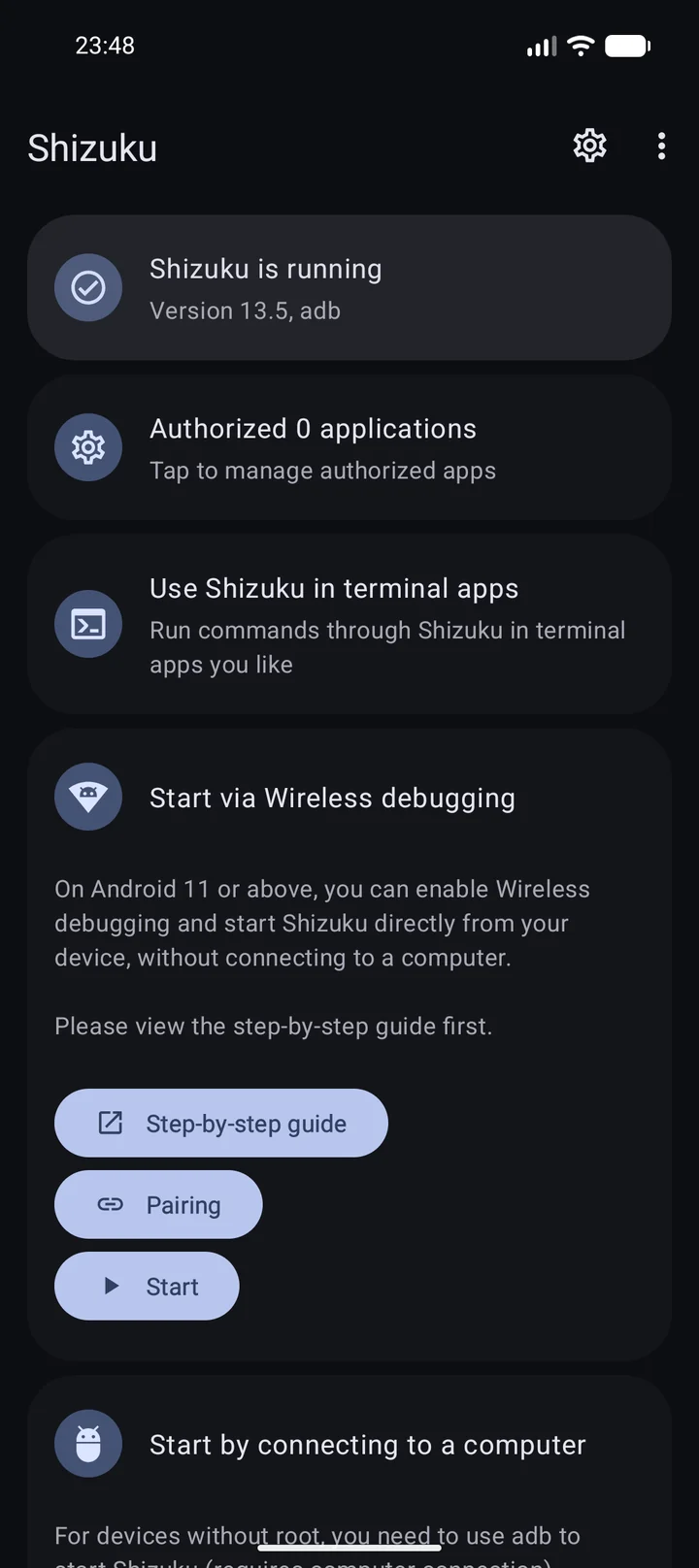
Power users running Shizuku, Hail, or AppLock Revived can keep their rootless utilities safely without exposing an open ADB daemon. Turning off Wireless Debugging right after starting Shizuku, pruning paired ADB hosts, preserving Android Restricted Settings, and enforcing Google Play Protect or cryptographic APK checks close every automated privilege path.
A common misconception after the Bazuka and ArcticRAT reports is that enabling Developer Options or running Shizuku automatically creates a remotely exploitable hole. In reality, Bazuka’s self_adb module cannot connect to Android’s local adbd daemon cold. It first relies on Accessibility Services to open System Settings, tap into Developer Options, toggle Wireless Debugging on, capture the six-digit pairing PIN rendered on screen, and establish a local TLS pairing session. Once paired, device_control executes shell-level commands without prompting the user again. Hardening this surface requires cutting off both the Accessibility entry point and unnecessary Wireless Debugging uptime:
- Turn Wireless Debugging OFF Immediately After Starting Shizuku: When Shizuku starts via Wireless Debugging, it spawns its persistent
UID 2000(shell) server process (libshizuku.so) in memory. That daemon continues running across Wi-Fi changes and screen locks even after you toggle Wireless Debugging off. Leaveadb_wifi_enabledset to0during daily use and re-enable it solely after a full device reboot to restart Shizuku. - Prune Paired ADB Hosts & Legacy TCP Listeners: Open
Settings > Developer options > Wireless debugging > Paired devicesand remove every unknown device name or stale pairing entry. TapRevoke USB debugging authorizationsmonthly, and avoid leaving legacyadb tcpip 5555listeners bound on untrusted Wi-Fi networks. - Preserve Android Restricted Settings & Prefer Shizuku Over Accessibility: Android 13 through Android 17 block sideloaded APKs from enabling Accessibility Services or Notification Listeners unless you manually open App Info and tap
Allow restricted settings. Treat that warning dialog as a hard stop for unverified software. For legitimate system utilities such as biometric app locks, deploy AppLock Revived over Shizuku or Usage Stats backends instead of granting invasive Accessibility read-all privileges. - Keep Google Play Protect Active or Verify Signatures Cryptographically: Because Bazuka’s core specifically attempts to disable Google Play Protect through Accessibility automation, verify that Play Protect scanning remains enabled on certified Android devices. On GrapheneOS or Obtainium workflows, verify every release binary’s SHA-256 digest and signing certificate with
apksigner, and follow our engineering workflow to verify unverified sideloaded APKs via ADB cleanly ahead of Google’s January 2027 global rollout.
Run this quick verification block from your workstation to confirm that Wireless Debugging and legacy TCP ports are shut down while Shizuku stays operational:
# Verify Wireless Debugging is OFF (expected output: 0)
adb shell settings get global adb_wifi_enabled

# Confirm no legacy TCP ADB listener is active (expected output: empty)
adb shell getprop service.adb.tcp.port

# Confirm Shizuku's UID 2000 daemon remains active with Wireless Debugging disabled
adb shell ps -A | grep shizuku

# List any sideloaded packages granted Restricted Settings bypass
adb shell appops query-op --user 0 ACCESS_RESTRICTED_SETTINGS allow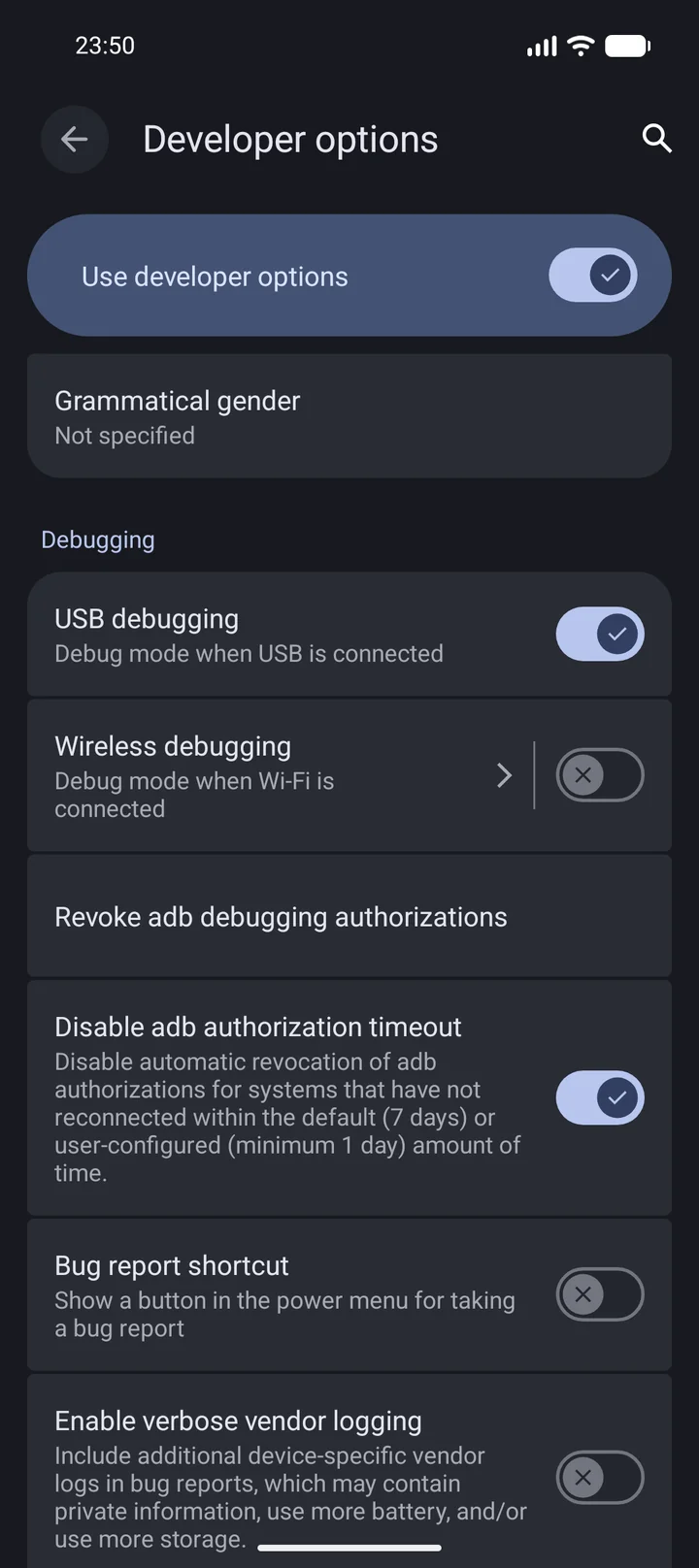
Step 3: Defend Self-Custody Crypto Wallets Against clip_monitor Address Swapping
Bazuka’s clip_monitor module polls Android’s clipboard via getPrimaryClip and swaps copied BTC, ETH, TRC20, and SOL wallet addresses with attacker destinations. Stopping silent clipboard hijacking requires isolating self-custody wallets inside Android Private Space or Knox Secure Folder, disabling keyboard clipboard history, verifying full addresses, and signing transfers via QR codes.
Clipboard hijackers thrive on speed and habit: users copy a 42-character Ethereum address or 44-character Solana public key from an exchange, paste it into a wallet, glance at the first three characters, and sign an irreversible transfer. Because Bazuka combines core clipboard interception with foreground keylogging in input_recorder, hardening mobile crypto custody requires breaking shared OS boundaries:
- Enforce OS Profile Isolation (Private Space, Knox, or GrapheneOS Profiles): On Android 15 through Android 17, move all financial and cryptocurrency apps into Android Private Space locked behind a separate PIN as part of broader Android privacy hardening workflows. On Galaxy flagships like the S25 Ultra running One UI 9.0, use Samsung Secure Folder (Knox); on Pixel devices running GrapheneOS, dedicate an isolated Secondary User Profile with inter-profile sharing disabled. Profile isolation keeps everyday browsers, chat clients, and sideloaded entertainment apps from reading your wallet profile’s clipboard or rendering overlays inside it.
- Disable Persistent Keyboard Clipboard Managers: Although stock Android clears the system clipboard automatically after 60 minutes, OEM keyboard overlays such as Samsung Keyboard Clipboard and Gboard Clipboard History retain pasted strings across sessions. Turn off keyboard clipboard history, disable cloud keyboard syncing, and enable GrapheneOS’s background clipboard read restriction if your OS supports it.
- Verify First 8 and Last 8 Characters After Pasting: Modern address poisoners and clippers match leading and trailing prefixes to fool quick glances. After pasting any BTC, ETH, TRC20, or SOL destination, visually verify at least the first 8 and last 8 characters (or the entire checksummed address) on the final broadcast review screen before authenticating.
- Run Audited FOSS Wallets & Air-Gapped QR Signing: Keep daily spending balances small inside audited open-source Android crypto wallets compiled from verifiable upstream GitHub releases. For multi-asset self-custody, follow our guide to harden Cake Wallet on Android using camera QR address scanning instead of clipboard copy-paste, and pair large long-term balances with an air-gapped hardware signer that displays the destination address on its own independent screen.
Step 4: Incident Response Playbook for Suspected Bazuka or Overlay Infections
If your smartphone displays unresponsive home screens, opens Settings autonomously, or blocks uninstall buttons, switch on Airplane Mode immediately to sever Bazuka’s dual ChaCha20-Poly1305 WebSocket channels. Next, boot into Android Safe Mode to halt third-party overlays and uninstall_shield, remove offending APKs, factory reset the device, and rotate compromised credentials.
Speed matters during an active banking trojan session because Bazuka’s operator console queues high-priority commands like enableUninstallProtection and can trigger its self-destruct sequence to erase forensic evidence while draining active financial sessions. Execute these four steps in exact order:
- Cut All Radios Immediately: Pull down Quick Settings (or use the physical side button menu) and enable Airplane Mode. Confirm Wi-Fi, mobile data, Bluetooth, and NFC are all switched off so neither the Control/Data WebSockets nor
tapread-nfc_modulecan communicate withbrokerok[.]orgor peer relays. - Boot Into Android Safe Mode: Press and hold the Power button until the power menu renders, then long-press Power off and confirm Reboot to safe mode. On unresponsive overlays, force a hardware reboot (Power + Volume Down for 10 seconds on Samsung and Pixel phones) and hold Volume Down once the manufacturer logo appears until “Safe mode” shows in the bottom-left corner. Safe Mode blocks all third-party Accessibility services,
SYSTEM_ALERT_WINDOWoverlays, anduninstall_shieldhijacks. - Revoke Privileges & Strip Malicious Packages: Inside Safe Mode, open
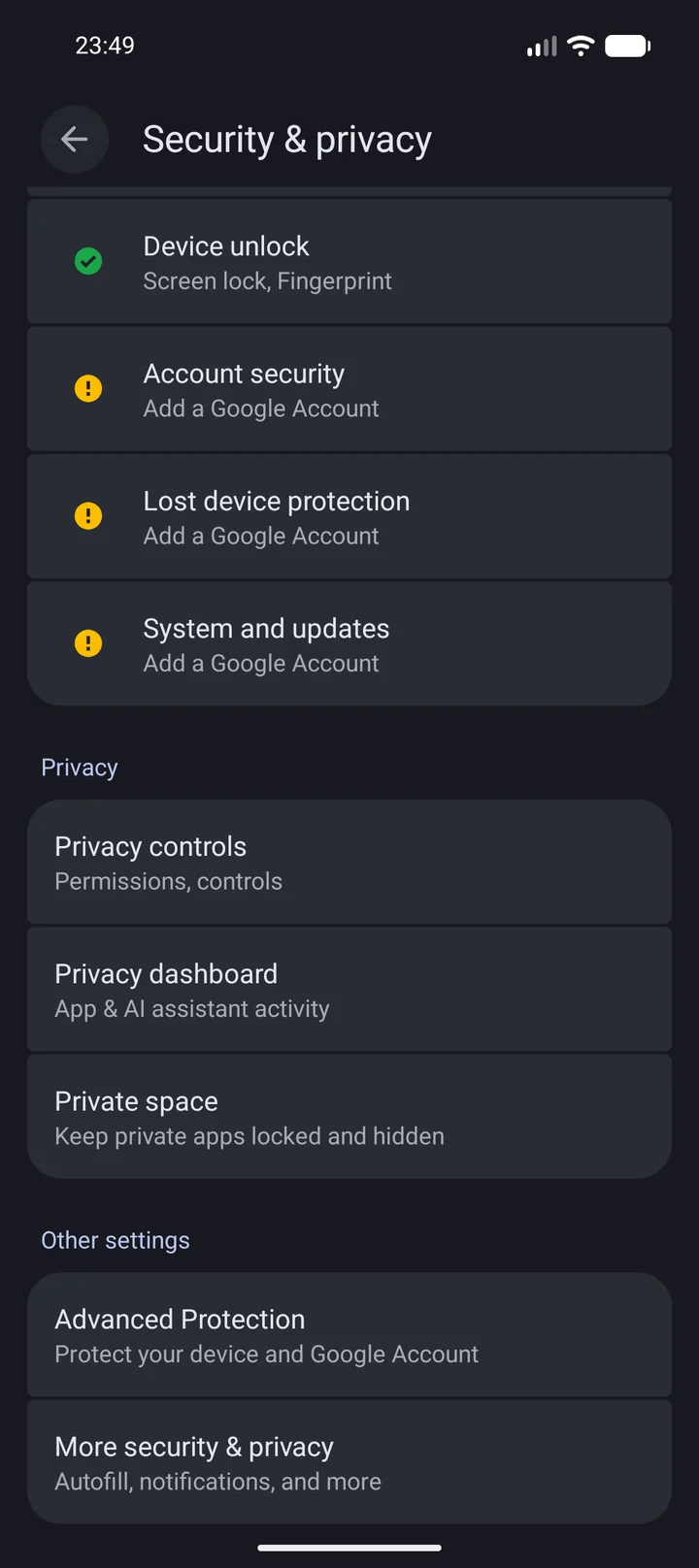
Settings > Security & privacy > Device admin appsand deactivate any unfamiliar administrator, then openSettings > Appsand uninstall suspect APKs (such ascom.tiktok.premiumorcom.tiktok.premium.pro). If UI removal stalls, connect over USB to a clean workstation and clear Accessibility bindings and packages via ADB using the commands below. - Factory Reset & Rotate Every Exposed Secret From a Clean Device: Even though Bazuka’s current build does not survive uninstallation via persistent ADB implants,
input_recorder,screen_control,smsmessage, andtwofacapture your lock screen PIN, banking logins, SMS codes, and any wallet seed phrases displayed while infected. Never trust an infected installation after deleting the APK. Perform a complete factory wipe (Settings > System > Reset options > Erase all data), then use a separate clean computer or phone to change banking passwords, freeze compromised payment cards, invalidate active OAuth sessions, and sweep crypto assets into freshly generated seed phrases.
If an active overlay or Device Admin lock resists on-device uninstallation before your factory wipe, execute this emergency USB containment sequence from a clean host:
# 1. Clear all active Accessibility service bindings immediately
adb shell settings put secure enabled_accessibility_services ""
adb shell settings put secure accessibility_enabled 0

# 2. Force-stop and uninstall known Bazuka decoy packages or any confirmed rogue ID
adb shell am force-stop com.tiktok.premium
adb uninstall com.tiktok.premium
adb uninstall com.tiktok.premium.pro
If adb uninstall returns DELETE_FAILED_DEVICE_POLICY_MANAGER, the malware still holds an active Device Administrator flag. Reboot into Safe Mode first, revoke its Device Admin checkbox under Security settings, and re-run adb uninstall or proceed straight to a full factory wipe via Android Recovery Mode.
Frequently Asked Questions
Does keeping Shizuku running make my Android phone vulnerable to Bazuka’s self_adb attack?
Running a properly configured Shizuku daemon does not expose your phone to Bazuka’s self_adb module on its own. Shizuku restricts UID 2000 API access strictly to apps you manually authorize, while Bazuka requires Accessibility Services to enable Wireless Debugging and intercept the pairing PIN. Always disable Wireless Debugging after launching Shizuku.
How can I tell if an app is displaying a fake home screen overlay on Android?
A fake home screen screenshot from Bazuka’s optics module freezes dynamic UI elements like the status bar clock, battery percentage, live weather widgets, and tap ripples while background activity heats the handset. Triggering the hardware power menu, pulling down Quick Settings, or checking SYSTEM_ALERT_WINDOW over USB ADB immediately exposes active overlays.
Can Bazuka malware survive after I uninstall the malicious APK or boot into Safe Mode?
ThreatFabric’s November 2026 analysis confirms Bazuka has not implemented post-uninstall surviving ADB modules, so booting into Safe Mode halts its runtime overlays and lets you uninstall the APK. Because Bazuka logs PINs, passwords, SMS codes, and clipboard contents while active, you must still factory reset the phone and rotate compromised secrets.
Does Android’s 2027 Developer Verification stop malware like Bazuka?
Google’s Android Developer Verification, rolling out globally in January 2027, blocks unregistered traffer APKs by linking installs on certified handsets to verified developer identities. Because verification confirms identity alone and never inspects dynamic DEX modules loaded via InMemoryDexClassLoader, attackers can still abuse hijacked developer accounts or coach victims through Advanced Flow overrides.
Leave a Reply