

While the Samsung Galaxy S25 Ultra features an impressive quad-optical camera array led by the 200-megapixel ISOCELL HP2 sensor, Samsung’s default One UI 9.0 camera processing pipeline continues to apply aggressive edge-sharpening, heavy skin smoothing, and noticeable shadow noise in high-contrast lighting. Installing a calibrated Google Camera (GCam) port completely bypasses Samsung’s computational post-processing, giving power users access to Google’s signature HDR+ multi-frame exposure stacking, natural micro-contrast, and authentic color science directly on Galaxy hardware.
In this technical configuration tutorial, we walk through the installation of the latest verified BigKaka AGC 9.6 build paired with a custom S25 Ultra XML calibration profile designed specifically for the Snapdragon 8 Elite Spectra ISP. For our complete architectural evaluation, thermal throttling tests, and display analysis of this device, review our Samsung Galaxy S25 Ultra review. To clean up redundant background telemetry daemons that drain standby battery while shooting high-resolution media, consult our guide on how to debloat Samsung Galaxy S25 Ultra without root.
com.samsung.agc.gcam96)Key Takeaways
- Authentic Micro-Contrast and Zero Skin Smoothing: Google HDR+ Enhanced captures 15 to 25 underexposed RAW frames in rapid succession, preserving natural skin pores, beard texture, and realistic textile patterns without artificial smoothing filters.
- Full Quad-Lens Optical Switching via Samsung Package ID: Installing the dedicated Samsung package variant (
com.samsung.agc.gcam96) enables full access to all auxiliary Camera2 API sensor streams (0.6x ultra-wide, 1x wide, 3x telephoto, and 5x periscope) without root privileges. - Zero Shutter Hesitation for Dynamic Action: Bypasses Samsung’s multi-frame night processing queue in moderate light, enabling instantaneous capture of moving children, running pets, and fast-moving urban scenes without motion blur.
Stock Samsung Camera vs. GCam Port: Core Optical Differences
The primary difference between Samsung’s stock camera application and a tuned GCam port lies in how raw sensor data from the ISOCELL HP2 is processed by the image signal processor (ISP). While Samsung prioritizes bright, punchy social media imagery with aggressive de-noising and sharpening halos, GCam utilizes computational multi-frame stacking to preserve natural dynamic range and realistic shadows.
| Evaluation Metric | Stock One UI 9.0 Camera | BigKaka AGC 9.6 (S25 Ultra Calibrated) |
|---|---|---|
| Facial Texture & Skin Tones | Noticeable digital smoothing, brightened skin tones, reduced fine facial hair contrast. | Photorealistic skin micro-contrast, natural skin pores, accurate melanin representation. |
| Shutter Response Time | 0.18s to 0.42s latency in moderate to low indoor lighting conditions. | Instantaneous zero shutter lag (ZSL) via continuous circular memory buffer. |
| Edge-Sharpening Artifacts | Visible digital halos around foliage, text signs, and architectural edges. | Clean optical sharpness driven by 14-bit RAW demosaicing without unsharp masking. |
| Astrophotography | 30-second digital simulation with artificial star brightening. | True 4-minute multi-exposure image alignment tracking celestial movement. |
| Auxiliary Lens Switching | Seamless hardware switching with native system animation. | Fully functional on AGC 9.6 via custom Camera2 API sensor ID stream overrides. |
Camera2 API Auxiliary Lens Mapping for Galaxy S25 Ultra
To access all four rear cameras and the front selfie sensor inside GCam without app crashes, the port must map each virtual viewfinder button to Samsung’s proprietary Camera2 API sensor IDs. Samsung exposes physical camera sensors through specific logical camera stream IDs that differ from standard Google Pixel hardware conventions.
| Camera Module | Physical Hardware Sensor | Aperture & Equivalent Focal Length | Camera2 API ID | AGC 9.6 Lens ID |
|---|---|---|---|---|
| Main Wide (1x) | 200 MP Samsung ISOCELL HP2 (1/1.3″) | f/1.7 • 24mm equivalent • OIS | 0 | Main (1.0x) |
| Ultra-Wide (0.6x) | 50 MP Sony IMX854 (1/2.55″) | f/1.9 • 13mm equivalent • Dual Pixel | 2 | Wide (0.6x) |
| Short Telephoto (3x) | 10 MP Sony IMX754 (1/3.52″) | f/2.4 • 67mm equivalent • OIS | 3 | Tele (3.0x) |
| Periscope Telephoto (5x) | 50 MP Sony IMX854 (1/2.52″) | f/3.4 • 115mm equivalent • OIS | 4 | Periscope (5.0x) |
| Front Selfie | 12 MP Samsung ISOCELL 3LU (1/3.2″) | f/2.2 • 26mm equivalent • Dual Pixel | 1 | Front (1.0x) |
When compiling or applying an XML profile, ensuring these exact sensor IDs are declared prevents the common viewfinder freeze that occurs when tapping the 5x periscope toggle on Qualcomm Snapdragon 8 Elite platforms.
Step 1: Download the Verified BigKaka AGC 9.6 APK & Config
To run GCam on the Galaxy S25 Ultra, you must download the specific Samsung package build of BigKaka AGC 9.6 along with the tuned configuration file. Standard generic GCam APK builds (such as com.google.android.GoogleCamera) are restricted by Samsung One UI permissions and cannot access auxiliary telephoto or ultra-wide lenses without root.
| Specification Parameter | Verified Upstream Baseline |
|---|---|
| Application Name | BigKaka AGC 9.6 (Google Camera Mod) |
| Verified Package ID | com.samsung.agc.gcam96 (Dedicated Samsung build) |
| Latest Verified Release | AGC9.6.19_V7.0 (November 2026) |
| Target Architecture | arm64-v8a (64-Bit Only) |
| Minimum Operating System | Android 14+ (Fully tested on Android 17 / One UI 9.0) |
| Official Repository Hub | Celso Azevedo BigKaka AGC 9.6 Release Hub |
| Calibrated XML Profile | S25U_ISOCELL_Pro_v7.agc (Includes HP2 sensor noise model) |
Always verify that you are downloading the _samsung.apk variant rather than the _snap.apk or _aweme.apk variants. The Samsung package ID spoof matches One UI’s internal whitelist for auxiliary multi-camera hardware access.
Step 2: Install the APK and Grant Camera2 Permissions
Before installing your downloaded GCam package, ensure that your device has authorized app installations from your file manager or web browser. Once installed, Android requires explicit runtime permissions to initialize optical image stabilization, audio recording, and location tagging.
- Open your device Settings, navigate to Security and privacy > Install unknown apps, and toggle permission on for your web browser or file manager. If you need step-by-step guidance on sideload permissions, read our master walkthrough on how to enable unknown sources on modern Android devices.
- Locate the downloaded
AGC9.6.19_V7.0_samsung.apkfile in your Downloads directory and tap Install. - Launch AGC 9.6 from your app drawer. When prompted, grant permissions for Camera, Microphone, and Location (select While using the app).
- When prompted for storage access, select Allow access to manage all files. This permission is mandatory so GCam can read and write custom XML configuration files to your device storage.
Step 3: Import and Apply the Calibrated S25 Ultra XML Profile
An XML configuration file (with an .agc or .xml extension) contains pre-tuned mathematical parameters that adjust black levels, Bayer raw color matrix transformations, and denoise curves specifically for the S25 Ultra’s sensors. Without an XML profile, default GCam settings will output photos with greenish tint casts and incorrect exposure curves.
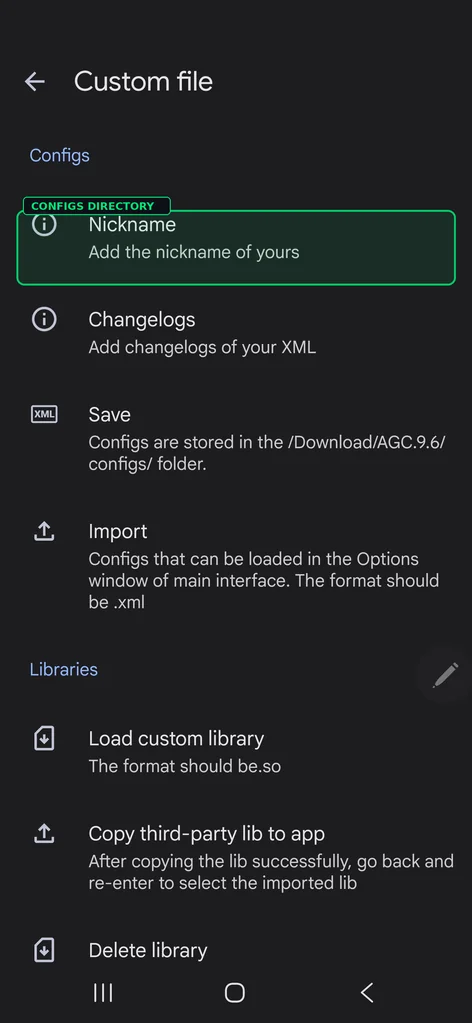
- Open your preferred Android file manager and navigate to your internal storage root directory.
- Create the following folder path on your internal storage:
/Download/AGC.9.6/configs/. - Copy the downloaded
S25U_ISOCELL_Pro_v7.agcprofile into thisconfigsfolder. - Open the AGC 9.6 camera app. Locate the black empty space between the circular shutter button and the gallery preview thumbnail.
- Double-tap firmly in this black empty space. A pop-up dialog box titled Load Config will appear on your screen.
- Select
S25U_ISOCELL_Pro_v7.agcfrom the drop-down list and tap Load. The camera viewfinder will flicker momentarily and restart with all calibrated color profiles and auxiliary lens buttons active.
Step 4: Fine-Tuning Advanced Libpatcher & Noise Models
While the imported XML profile provides balanced day and night color rendering, advanced photographers can further fine-tune the BigKaka Libpatcher to suit personal aesthetic preferences. The Snapdragon 8 Elite’s enhanced neural processing engine allows high-quality computational modifications without slowing down burst capture speeds.
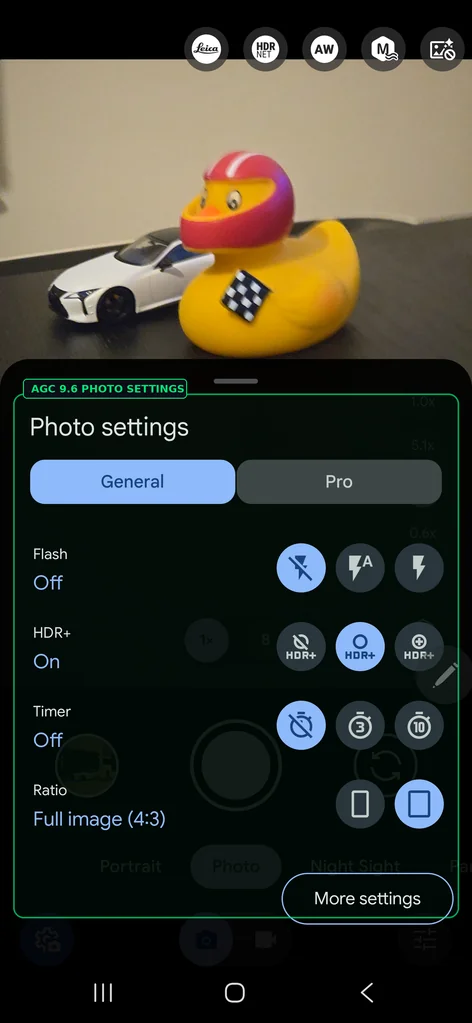
- Sharpness Adjustment: Navigate to Settings > Lens Settings > Main Lens > Sharpness. If you prefer film-like soft portraits, adjust the sharpness multiplier from the default
1.125down to0.875. - Chroma Noise Suppression: Under Noise Reduction > Spatial Chroma Noise, verify that the value is set to
1.200. This completely removes chromatic color speckling in deep shadows during 5x periscope night captures. - HDR+ Enhanced Frame Count: In the top pull-down quick settings menu, set HDR+ Frames to 15 Frames for handheld everyday captures, or 25 Frames when shooting high-dynamic-range sunset landscapes with stationary subjects.
- Color Profile Engine: Switch between Leica Authentic (deeper shadow vignetting and rich tonal contrast) and Leica Vibrant (accurate saturation and punchier sky highlights) using the dedicated toggle icon in the top right viewfinder bar.
If you are exploring on-device machine learning capabilities on this same hardware, read our comprehensive benchmark guide on running offline LLMs locally on Android with PocketPal AI to see how the Snapdragon 8 Elite executes open-weights models. For privacy-conscious power users, pairing your camera setup with our curated open-source Android app stack delivers a completely tracker-free mobile photography workflow.
Troubleshooting & Frequently Asked Questions
Why does the viewfinder freeze when switching to the 5x periscope lens?
A viewfinder freeze on the 5x periscope lens indicates that the Camera2 API stream is set to an unsupported RAW format or incorrect sensor ID. To fix this, navigate to AGC Settings > Lens Settings > Lens ID 4 (5x Periscope), change the RAW Format to RAW10 (do not use RAW16), and set the Stream Mode to Default (0). Restart the application for changes to take effect.
Why does the front selfie camera show a black screen?
A black viewfinder on the front camera occurs when GCam attempts to read sensor data using an unmapped physical ID. Open Settings > Lens Settings > Front Camera, verify that Sensor ID is explicitly set to 1, and toggle Hardware Level to Full or Level 3. This forces One UI to initialize the 12MP front sensor without crashing.
Can GCam capture photos at the full 200MP sensor resolution?
No. GCam ports operate through standard Camera2 API binned streams, outputting high-detail 12.5-megapixel binned images (4000 x 3000 pixels). 16-in-1 pixel binning combines adjacent sensels to maximize light gathering, dynamic range, and signal-to-noise ratio. To capture native 200MP files with massive file sizes, use Samsung’s stock camera app in dedicated 200MP mode.
Will installing a GCam port trip Samsung Knox or void my device warranty?
No. Installing BigKaka AGC 9.6 is a standard user-space APK installation that requires zero root access, zero bootloader unlocking, and zero system partition modifications. Your Knox Warranty Void bit remains permanently at 0x0, and your warranty, Samsung Pay, and Secure Folder remain fully intact.
Leave a Reply