Rollback a Faulty Play Store Update
- If a brand-new
v53.xupdate causes stability issues on your specific phone, go to Settings → Apps → Google Play Store. Tap the three-dot menu (⋮) in the top-right corner and select Uninstall updates. This restores the factory Play Store build stored on your system partition. It will then cleanly re-update over Wi-Fi.
Frequently Asked Questions (FAQ)
How to Reinstall or Get the Google Play Store App Back on Android
To get the Google Play Store back after accidental disappearance or uninstallation, open Settings → Apps → All apps, select Disabled apps from the filter dropdown, find Google Play Store, and tap Enable. If the app was completely removed via ADB or root debloating, download the standalone Play Store APK matching your Android version and install it directly via your file manager to restore store functionality.
Is it safe to install the Google Play Store APK manually?
Yes, provided you download the unmodified APK signed by Google LLC. Android’s package installer checks the cryptographic signature of the new .apk against the official Google Play Store in your system partition. If a single byte of the package was modified by an unauthorized party, Android will block the installation immediately.
Why does my phone say “App not installed as package appears to be invalid”?
This error usually stems from one of two causes. First, you might have downloaded an unsupported split bundle (.apkm or .xapk) instead of a standalone .apk file. Second, you may have downloaded a 64-bit arm64-v8a build meant for Android 14+ onto an older 32-bit device. Refer to the compatibility table above to select the correct minimum API version for your hardware.
Can I download and install the Google Play Store APK on Android TV or Fire Stick?
Standard phone Google Play Store APKs will crash or fail to navigate properly on Android TV and Amazon Fire TV devices. Android TV requires the specialized Google Play Store (Android TV) package built for the Leanback TV interface, alongside matching TV-specific builds of Google Play Services and Google Services Framework.
Final Thoughts
Keeping the Google Play Store updated ensures access to the latest security definitions, faster download speeds, and reliable background app updates. Whether you trigger the built-in updater through the About menu, sideload the latest v53.x APK manually, or adopt open-source tools like Obtainium and Aurora Store, managing your Android app environment takes only a few minutes.
Ready to customize your Android experience further? Learn how to automate GitHub app updates with Obtainium APK, patch applications with ReVanced Manager APK, debloat factory software using our Rootless Android Debloating Guide, or discover top privacy tools in The 2026 Open-Source Android App Stack. If you need to manually update core Google media apps alongside the Play Store, check our guide to downloading the official YouTube APK.
Clear Google Play Services & Download Manager Cache
- Inside Settings → Apps, tap the three-dot menu (⋮) and choose Show system apps.
Rollback a Faulty Play Store Update
- If a brand-new
v53.xupdate causes stability issues on your specific phone, go to Settings → Apps → Google Play Store. Tap the three-dot menu (⋮) in the top-right corner and select Uninstall updates. This restores the factory Play Store build stored on your system partition. It will then cleanly re-update over Wi-Fi.
Frequently Asked Questions (FAQ)
How to Reinstall or Get the Google Play Store App Back on Android
To get the Google Play Store back after accidental disappearance or uninstallation, open Settings → Apps → All apps, select Disabled apps from the filter dropdown, find Google Play Store, and tap Enable. If the app was completely removed via ADB or root debloating, download the standalone Play Store APK matching your Android version and install it directly via your file manager to restore store functionality.
Is it safe to install the Google Play Store APK manually?
Yes, provided you download the unmodified APK signed by Google LLC. Android’s package installer checks the cryptographic signature of the new .apk against the official Google Play Store in your system partition. If a single byte of the package was modified by an unauthorized party, Android will block the installation immediately.
Why does my phone say “App not installed as package appears to be invalid”?
This error usually stems from one of two causes. First, you might have downloaded an unsupported split bundle (.apkm or .xapk) instead of a standalone .apk file. Second, you may have downloaded a 64-bit arm64-v8a build meant for Android 14+ onto an older 32-bit device. Refer to the compatibility table above to select the correct minimum API version for your hardware.
Can I download and install the Google Play Store APK on Android TV or Fire Stick?
Standard phone Google Play Store APKs will crash or fail to navigate properly on Android TV and Amazon Fire TV devices. Android TV requires the specialized Google Play Store (Android TV) package built for the Leanback TV interface, alongside matching TV-specific builds of Google Play Services and Google Services Framework.
Final Thoughts
Keeping the Google Play Store updated ensures access to the latest security definitions, faster download speeds, and reliable background app updates. Whether you trigger the built-in updater through the About menu, sideload the latest v53.x APK manually, or adopt open-source tools like Obtainium and Aurora Store, managing your Android app environment takes only a few minutes.
Ready to customize your Android experience further? Learn how to automate GitHub app updates with Obtainium APK, patch applications with ReVanced Manager APK, debloat factory software using our Rootless Android Debloating Guide, or discover top privacy tools in The 2026 Open-Source Android App Stack. If you need to manually update core Google media apps alongside the Play Store, check our guide to downloading the official YouTube APK.
- Open Settings → Apps → Google Play Store → Storage.
Clear Google Play Services & Download Manager Cache
- Inside Settings → Apps, tap the three-dot menu (⋮) and choose Show system apps.
Rollback a Faulty Play Store Update
- If a brand-new
v53.xupdate causes stability issues on your specific phone, go to Settings → Apps → Google Play Store. Tap the three-dot menu (⋮) in the top-right corner and select Uninstall updates. This restores the factory Play Store build stored on your system partition. It will then cleanly re-update over Wi-Fi.
Frequently Asked Questions (FAQ)
How to Reinstall or Get the Google Play Store App Back on Android
To get the Google Play Store back after accidental disappearance or uninstallation, open Settings → Apps → All apps, select Disabled apps from the filter dropdown, find Google Play Store, and tap Enable. If the app was completely removed via ADB or root debloating, download the standalone Play Store APK matching your Android version and install it directly via your file manager to restore store functionality.
Is it safe to install the Google Play Store APK manually?
Yes, provided you download the unmodified APK signed by Google LLC. Android’s package installer checks the cryptographic signature of the new .apk against the official Google Play Store in your system partition. If a single byte of the package was modified by an unauthorized party, Android will block the installation immediately.
Why does my phone say “App not installed as package appears to be invalid”?
This error usually stems from one of two causes. First, you might have downloaded an unsupported split bundle (.apkm or .xapk) instead of a standalone .apk file. Second, you may have downloaded a 64-bit arm64-v8a build meant for Android 14+ onto an older 32-bit device. Refer to the compatibility table above to select the correct minimum API version for your hardware.
Can I download and install the Google Play Store APK on Android TV or Fire Stick?
Standard phone Google Play Store APKs will crash or fail to navigate properly on Android TV and Amazon Fire TV devices. Android TV requires the specialized Google Play Store (Android TV) package built for the Leanback TV interface, alongside matching TV-specific builds of Google Play Services and Google Services Framework.
Final Thoughts
Keeping the Google Play Store updated ensures access to the latest security definitions, faster download speeds, and reliable background app updates. Whether you trigger the built-in updater through the About menu, sideload the latest v53.x APK manually, or adopt open-source tools like Obtainium and Aurora Store, managing your Android app environment takes only a few minutes.
Ready to customize your Android experience further? Learn how to automate GitHub app updates with Obtainium APK, patch applications with ReVanced Manager APK, debloat factory software using our Rootless Android Debloating Guide, or discover top privacy tools in The 2026 Open-Source Android App Stack. If you need to manually update core Google media apps alongside the Play Store, check our guide to downloading the official YouTube APK.
Troubleshooting Google Play Store Crashes & Download Errors
If your Google Play Store is stuck on “Pending…”, throws error codes like DF-DFERH-01 or Error 910, or crashes after an update, run through this reset sequence:
Clear Google Play Store Cache & Storage
- Open Settings → Apps → Google Play Store → Storage.
Clear Google Play Services & Download Manager Cache
- Inside Settings → Apps, tap the three-dot menu (⋮) and choose Show system apps.
Rollback a Faulty Play Store Update
- If a brand-new
v53.xupdate causes stability issues on your specific phone, go to Settings → Apps → Google Play Store. Tap the three-dot menu (⋮) in the top-right corner and select Uninstall updates. This restores the factory Play Store build stored on your system partition. It will then cleanly re-update over Wi-Fi.
Frequently Asked Questions (FAQ)
How to Reinstall or Get the Google Play Store App Back on Android
To get the Google Play Store back after accidental disappearance or uninstallation, open Settings → Apps → All apps, select Disabled apps from the filter dropdown, find Google Play Store, and tap Enable. If the app was completely removed via ADB or root debloating, download the standalone Play Store APK matching your Android version and install it directly via your file manager to restore store functionality.
Is it safe to install the Google Play Store APK manually?
Yes, provided you download the unmodified APK signed by Google LLC. Android’s package installer checks the cryptographic signature of the new .apk against the official Google Play Store in your system partition. If a single byte of the package was modified by an unauthorized party, Android will block the installation immediately.
Why does my phone say “App not installed as package appears to be invalid”?
This error usually stems from one of two causes. First, you might have downloaded an unsupported split bundle (.apkm or .xapk) instead of a standalone .apk file. Second, you may have downloaded a 64-bit arm64-v8a build meant for Android 14+ onto an older 32-bit device. Refer to the compatibility table above to select the correct minimum API version for your hardware.
Can I download and install the Google Play Store APK on Android TV or Fire Stick?
Standard phone Google Play Store APKs will crash or fail to navigate properly on Android TV and Amazon Fire TV devices. Android TV requires the specialized Google Play Store (Android TV) package built for the Leanback TV interface, alongside matching TV-specific builds of Google Play Services and Google Services Framework.
Final Thoughts
Keeping the Google Play Store updated ensures access to the latest security definitions, faster download speeds, and reliable background app updates. Whether you trigger the built-in updater through the About menu, sideload the latest v53.x APK manually, or adopt open-source tools like Obtainium and Aurora Store, managing your Android app environment takes only a few minutes.
Ready to customize your Android experience further? Learn how to automate GitHub app updates with Obtainium APK, patch applications with ReVanced Manager APK, debloat factory software using our Rootless Android Debloating Guide, or discover top privacy tools in The 2026 Open-Source Android App Stack. If you need to manually update core Google media apps alongside the Play Store, check our guide to downloading the official YouTube APK.
The Google Play Store (com.android.vending) is the core application hub for certified Android smartphones and tablets. It handles app installations, background updates, Google Play Protect security scans, and subscription billing. Google Play usually updates itself silently in the background. However, millions of users frequently need to download and install the Google Play Store APK manually. Common reasons include fixing a corrupted update, restoring a disabled store, updating ahead of a staged rollout, or finding the right build for an older Android device.
In 2026, manually installing the Play Store requires choosing the exact build compiled for your Android API level and CPU architecture (arm64-v8a versus legacy 32-bit armeabi-v7a). In this guide, we explain how to force update the Play Store natively in two taps. We also cover where to download verified 2026 Google Play Store v53.x APKs, how to access archival builds for legacy Android 2.3 through Android 6.0 devices, how to fix package installation errors, and how to use open-source alternatives if your device lacks Google Mobile Services.
arm64-v8a, nodpi)Method 1: How to Force Update Google Play Store Built-In (No APK Needed)
Before you download an external .apk file, check whether your current Google Play Store app can pull the latest release directly from Google. Google hides the manual update trigger inside the app settings menu:
- Open the Google Play Store app on your Android phone or tablet.
- Tap your Profile Icon in the top-right corner of the screen.
- Select Settings near the bottom of the popup menu.
- Tap About to expand the version information dropdown.
- Under the Play Store version section, tap the Update Play Store button.
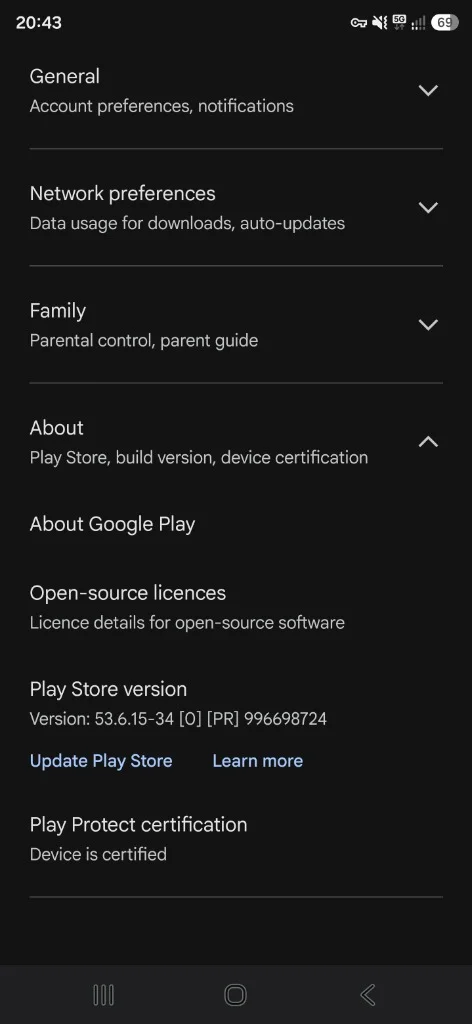
If your device is already running the latest release for your firmware, Android displays a confirmation dialog stating “Google Play Store is up to date.” If an update is pending, Google Play downloads and installs it silently in the background within a few minutes.
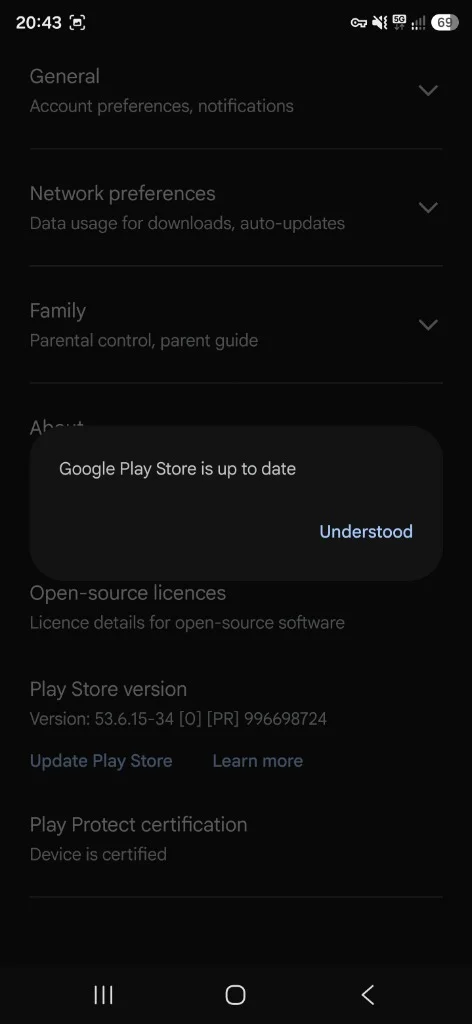
If the built-in updater hangs, throws an error code, or fails to fetch updates on an older device, proceed to Method 2 below to sideload the verified official APK manually.
Google Play Store APK Version & Android OS Compatibility Matrix (2026)
A common mistake when downloading a Google Play Store APK is grabbing a build compiled for a newer Android SDK than your phone supports. That mismatch triggers the error: “There was a problem parsing the package.”
Use this compatibility matrix to select the exact Google Play Store version series supported by your Android operating system:
| Android OS Version & API Level | Compatible Play Store APK Version | Architecture / DPI Variant | Package Format |
|---|---|---|---|
| Android 14, 15, 16 & 17 (API 34+) | v53.6.15+ (2026 Latest) | arm64-v8a or universal (nodpi) | Standalone .apk (~76 MB) or Split .apkm Bundle |
| Android 12, 12L & 13 (API 31 to 33) | v53.6.15+ | arm64-v8a / universal (nodpi) | Standalone .apk (~62 MB) or Split Bundle |
| Android 10 & 11 (API 29 to 30) | v53.6.15+ | arm64-v8a / armeabi-v7a (nodpi) | Standalone .apk or Split Bundle |
| Android 7.0 to 9.0 (Nougat to Pie) | v53.5.x to v53.6.x | universal / armeabi-v7a (nodpi) | Standalone .apk |
| Android 6.0 (Marshmallow, API 23) | v50.0.24 (Final Marshmallow build) | universal (nodpi) | Standalone .apk |
| Android 5.0 to 5.1 (Lollipop, API 21 to 22) | v40.1.19-21 (Final Lollipop build) | armeabi-v7a (nodpi) | Standalone .apk |
| Android 4.1 to 4.4 (Jelly Bean / KitKat) | v25.2.27 (Final KitKat build) | armeabi-v7a (240-480dpi) | Standalone .apk |
| Android 2.3 to 4.0 (Gingerbread / ICS) | v5.1.11 (Final Android 2.3+ build) | armeabi (universal) | Standalone .apk (9.7 MB) |
Direct Archival Downloads: Legacy Android Builds (Android 2.3 to Android 6.0)
If you are restoring an older tablet, vehicle infotainment system, or vintage phone that cannot run modern Android 10+ builds, download the final verified standalone APK release compiled for your operating system:
- Android 6.0 (Marshmallow): Google Play Store v50.0.24 APK (Final build supporting API 23).
- Android 5.0 & 5.1.1 (Lollipop): Google Play Store v40.1.19 APK (Final build supporting API 21 and 22).
- Android 4.1 to 4.4.4 (KitKat / Jelly Bean): Google Play Store v25.2.27 APK (Final KitKat release).
- Android 2.3 to 4.0.4 (Gingerbread / Ice Cream Sandwich): Google Play Store v5.1.11 APK (Our canonical archive release for vintage devices).
Note for vintage devices: After installing the Play Store APK on Android 5.1 or older, you must also install the matching legacy build of Google Play Services to prevent connection timeouts and login authentication errors.
Method 2: How to Download & Install the Official Google Play Store APK Safely
Google signs the Play Store with its official hardware-backed cryptographic release key. Because of this security layer, Android will refuse to install any modified or tampered APK over your existing store. Always download verified, unmodified builds using these steps:
- Choose a Verified Repository: Visit the official Google LLC section on APKMirror or Uptodown. These archives cryptographically verify Google’s original SHA-256 signing signature before listing any file.
- Select the Standalone APK Variant (Not BUNDLE):
- On modern releases such as v53.6.15, you will see two file types listed: APK and BUNDLE (
.apkm). - Always select the standard APK badge (
universalorarm64-v8a,nodpi). This allows you to install it directly with your phone’s native package installer without needing a third-party split installer. - Enable Unknown Sources Permission: If you have not sideloaded an app from your browser or file manager before, follow our complete 2026 Guide to Enabling Unknown Sources & Unlocking Samsung Auto Blocker.
- Tap and Update: Open the downloaded
.apkfile from yourDownloadsfolder and tap Update (or Install). Your existing Google account logins, installed apps, and purchases remain completely untouched.
- On modern releases such as v53.6.15, you will see two file types listed: APK and BUNDLE (
Why Sideloading Play Store APK Alone Fails on Fire Tablets & Chinese ROMs
A frequent problem occurs when users download the Google Play Store .apk onto an Amazon Fire Tablet, a Huawei device, or a domestic Chinese ROM. In most cases, the app crashes immediately upon opening.
The Google Play Store is not a standalone application. It relies on three interdependent background services, collectively known as Google Mobile Services (GMS). You must install them in this specific sequence:
- Google Services Framework (
com.google.android.gsf) - Google Account Manager (
com.google.android.gsf.login) - Google Play Services (
com.google.android.gms) - Google Play Store (
com.android.vending)
Better Privacy-First Alternatives to Google Play Services (2026)
If your device does not include Google Play out of the box, or if you want to avoid Google background telemetry, you do not need to install full GMS packages. Modern open-source alternatives offer cleaner workflows:
- Obtainium APK: The cleanest way to install and auto-update open-source apps directly from official GitHub, GitLab, and Codeberg developer releases without middlemen.
- Aurora Store (FOSS Play Store Client): Featured in our 2026 Open-Source Android App Stack. Aurora Store lets you search, download, and update free apps directly from Google Play servers through anonymous sessions. It requires neither a Google account nor Google Play Services.
- GrapheneOS Sandboxed Google Play & MicroG: If you run a custom ROM and need Play Integrity support for banking apps, run Google Play inside an unprivileged GrapheneOS sandbox or use MicroG (
GmsCore).
If you want fast, transparent open-source app updates outside Google Play, pair Droid-ify for F-Droid repositories with our Shizuku no-root wireless debugging guide for unattended installations.
Troubleshooting Google Play Store Crashes & Download Errors
If your Google Play Store is stuck on “Pending…”, throws error codes like DF-DFERH-01 or Error 910, or crashes after an update, run through this reset sequence:
Clear Google Play Store Cache & Storage
- Open Settings → Apps → Google Play Store → Storage.
Clear Google Play Services & Download Manager Cache
- Inside Settings → Apps, tap the three-dot menu (⋮) and choose Show system apps.
Rollback a Faulty Play Store Update
- If a brand-new
v53.xupdate causes stability issues on your specific phone, go to Settings → Apps → Google Play Store. Tap the three-dot menu (⋮) in the top-right corner and select Uninstall updates. This restores the factory Play Store build stored on your system partition. It will then cleanly re-update over Wi-Fi.
Frequently Asked Questions (FAQ)
How to Reinstall or Get the Google Play Store App Back on Android
To get the Google Play Store back after accidental disappearance or uninstallation, open Settings → Apps → All apps, select Disabled apps from the filter dropdown, find Google Play Store, and tap Enable. If the app was completely removed via ADB or root debloating, download the standalone Play Store APK matching your Android version and install it directly via your file manager to restore store functionality.
Is it safe to install the Google Play Store APK manually?
Yes, provided you download the unmodified APK signed by Google LLC. Android’s package installer checks the cryptographic signature of the new .apk against the official Google Play Store in your system partition. If a single byte of the package was modified by an unauthorized party, Android will block the installation immediately.
Why does my phone say “App not installed as package appears to be invalid”?
This error usually stems from one of two causes. First, you might have downloaded an unsupported split bundle (.apkm or .xapk) instead of a standalone .apk file. Second, you may have downloaded a 64-bit arm64-v8a build meant for Android 14+ onto an older 32-bit device. Refer to the compatibility table above to select the correct minimum API version for your hardware.
Can I download and install the Google Play Store APK on Android TV or Fire Stick?
Standard phone Google Play Store APKs will crash or fail to navigate properly on Android TV and Amazon Fire TV devices. Android TV requires the specialized Google Play Store (Android TV) package built for the Leanback TV interface, alongside matching TV-specific builds of Google Play Services and Google Services Framework.
Final Thoughts
Keeping the Google Play Store updated ensures access to the latest security definitions, faster download speeds, and reliable background app updates. Whether you trigger the built-in updater through the About menu, sideload the latest v53.x APK manually, or adopt open-source tools like Obtainium and Aurora Store, managing your Android app environment takes only a few minutes.
Ready to customize your Android experience further? Learn how to automate GitHub app updates with Obtainium APK, patch applications with ReVanced Manager APK, debloat factory software using our Rootless Android Debloating Guide, or discover top privacy tools in The 2026 Open-Source Android App Stack. If you need to manually update core Google media apps alongside the Play Store, check our guide to downloading the official YouTube APK.